














































RingCentral Compatible Headsets
Which RingCentral headsets to buy
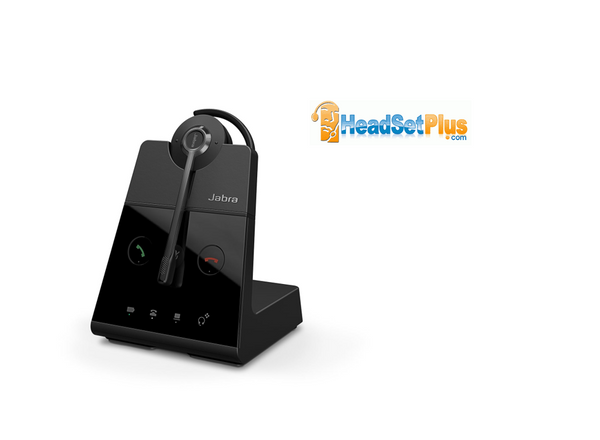
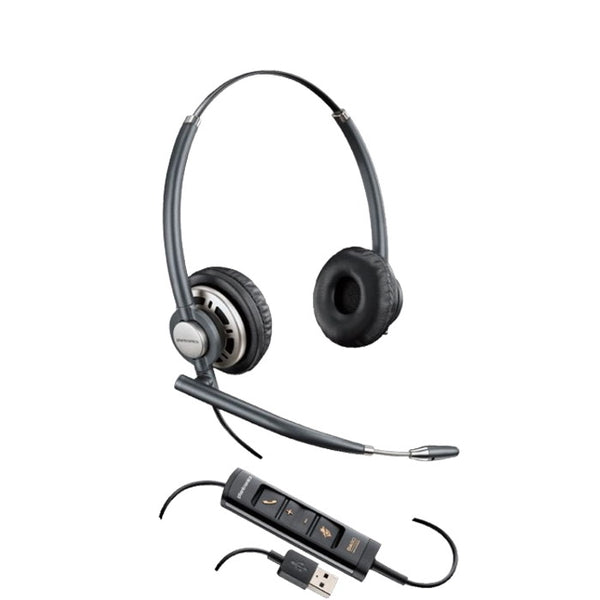
The RingCentral headsets we'd start with: the Poly Voyager 4320 for wireless, the Blackwire 3320 for wired, and the Savi 8420 if you also use a RingCentral desk phone.
Every model here is on RingCentral's own recommended list, or a newer version of a listed model. Where a headset comes in UC and Microsoft Teams versions, pick UC unless your team also works in Teams.
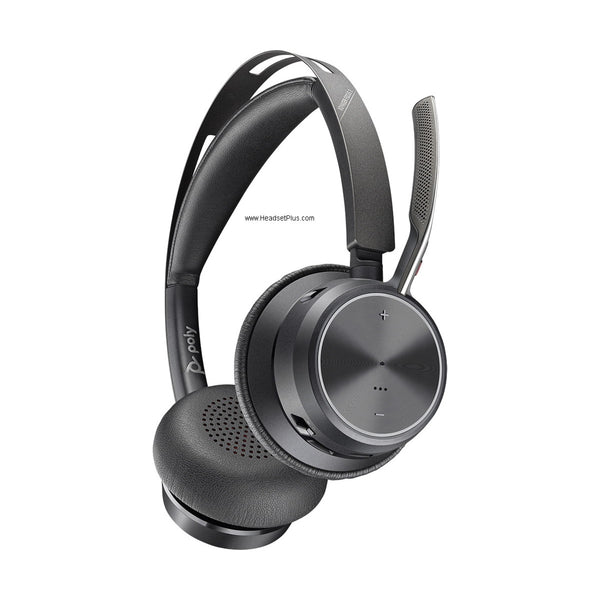
Poly Voyager Focus 2 Wireless Stereo Headset - 3-Level ANC
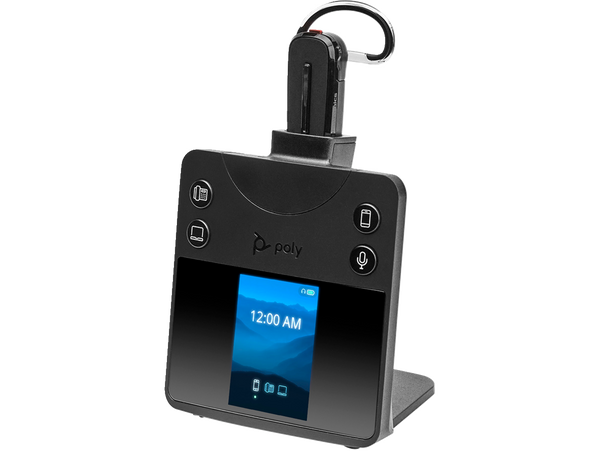
Poly Savi 8445 DECT Wireless Convertible Headset
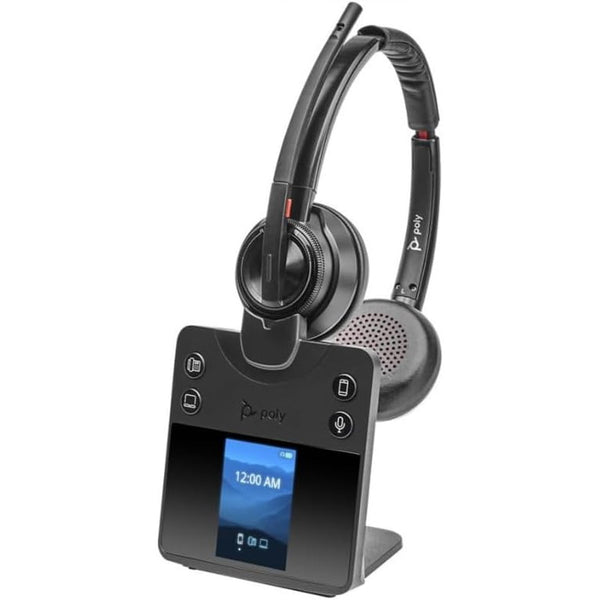
Poly Savi 8420 DECT Wireless Stereo Headset with ANC (EHS Remote Answer Options)
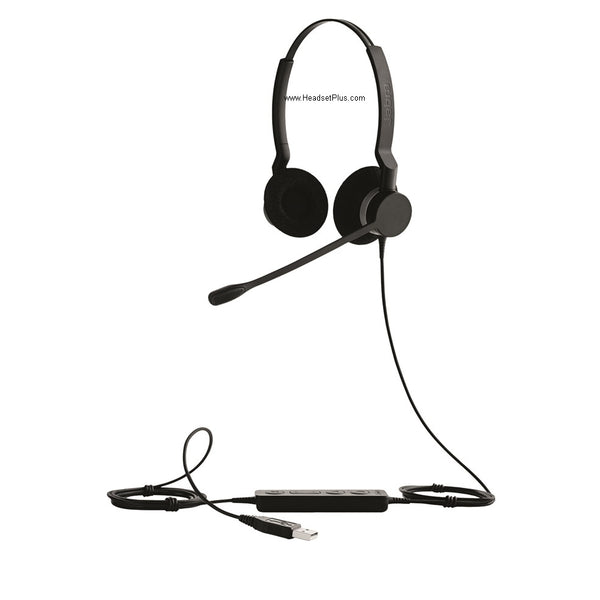
Jabra Biz 2300 – Professional Wired Noise-Cancelling Headset (Mono or Duo)
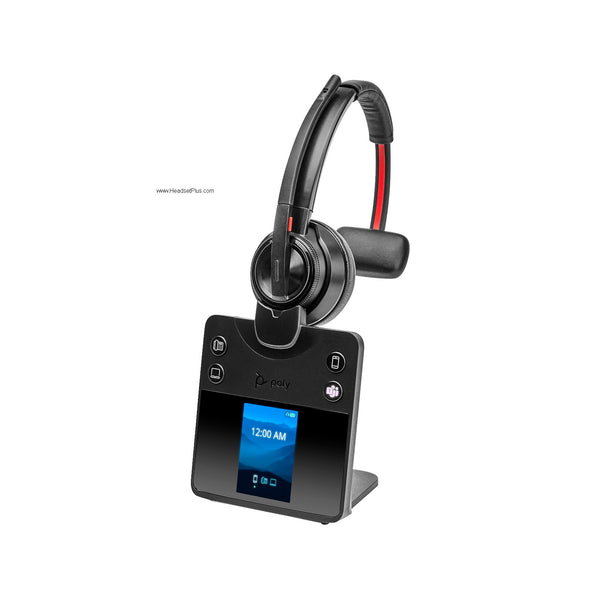
Poly Savi 8410 DECT Wireless Mono Bluetooth Headset
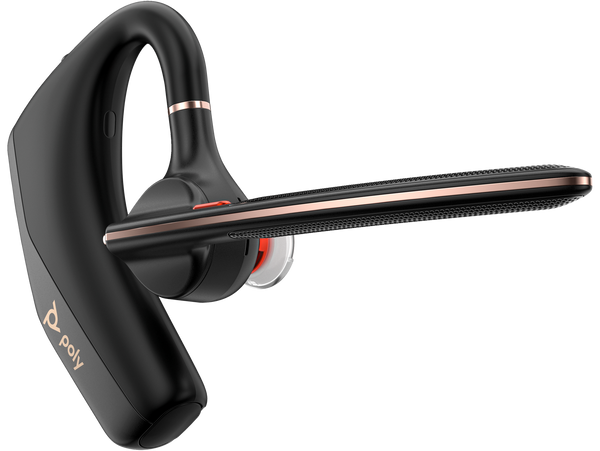
Poly Voyager Legend 50 Mono Bluetooth Headset - NoiseBlockAI
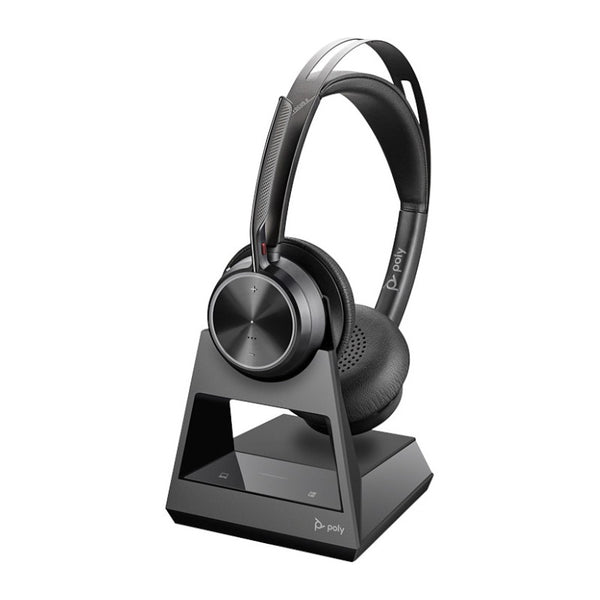
Poly Voyager Focus 2 Office Wireless Stereo Headset (EHS Remote Answer Options)
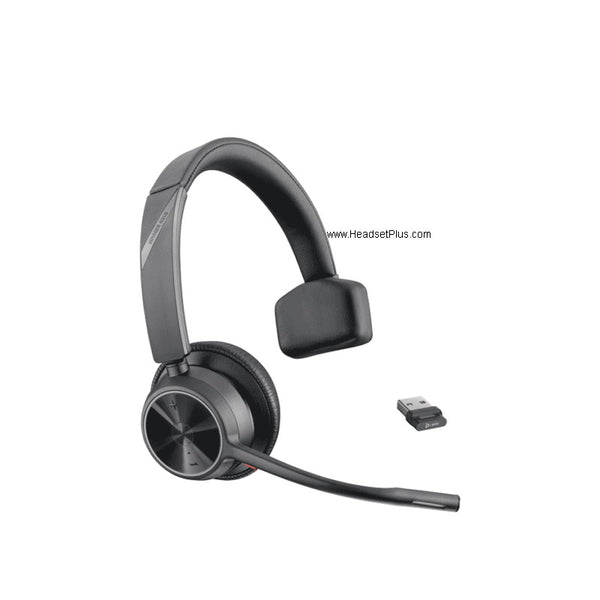
Poly Voyager 4310 Wireless Bluetooth Headset - Mono, 164 ft Range
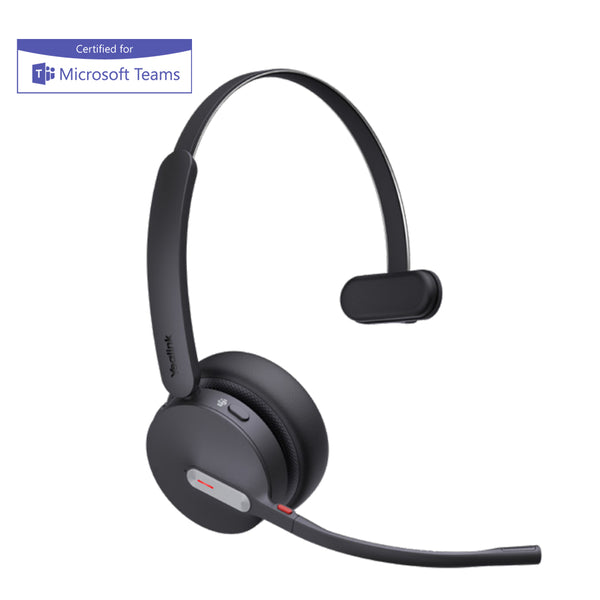
Yealink BH70 Bluetooth Headset - Teams Certified
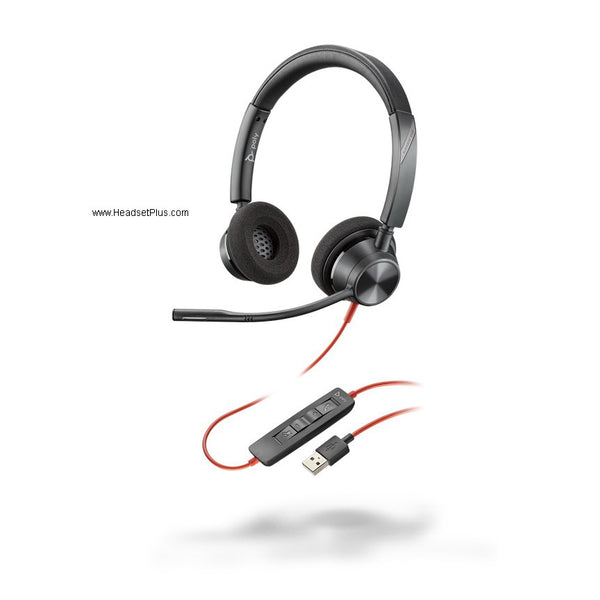
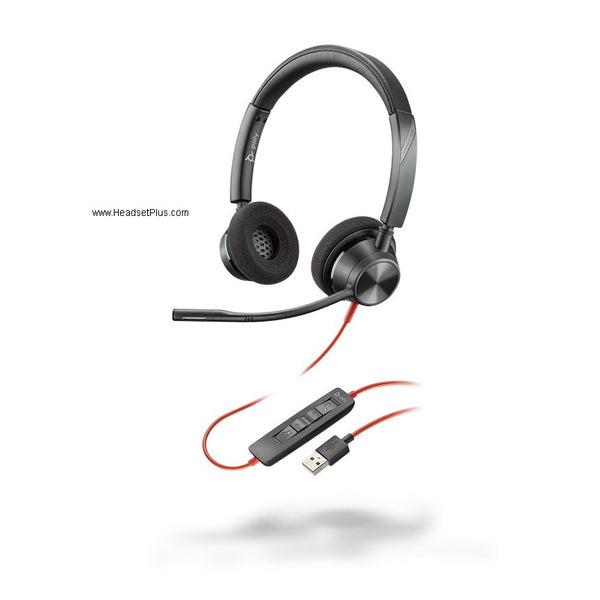
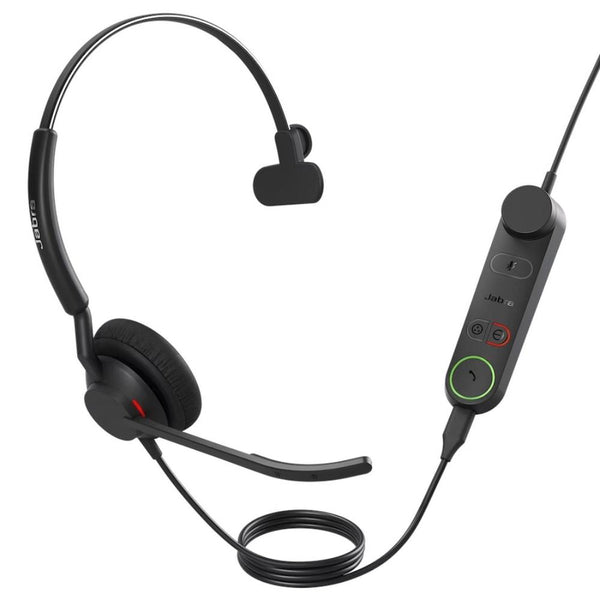
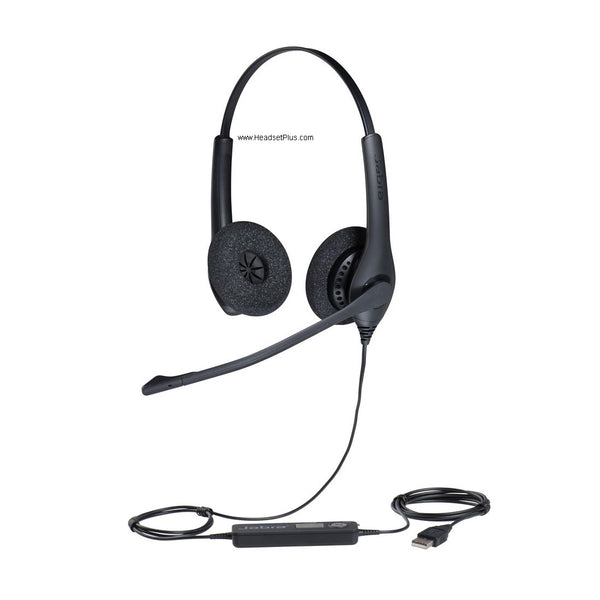
Jabra Biz 1500 – Professional Noise-Cancelling Office Headset (Mono or Duo)
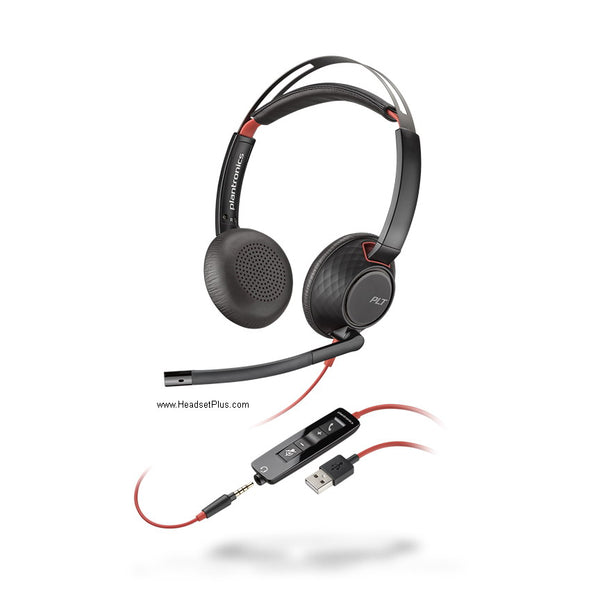
Plantronics Blackwire 5220 Stereo Headset – USB & 3.5mm (Teams Certified)
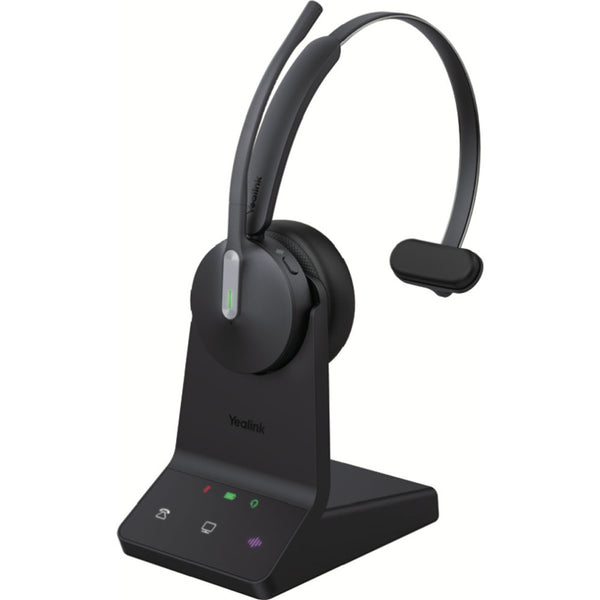
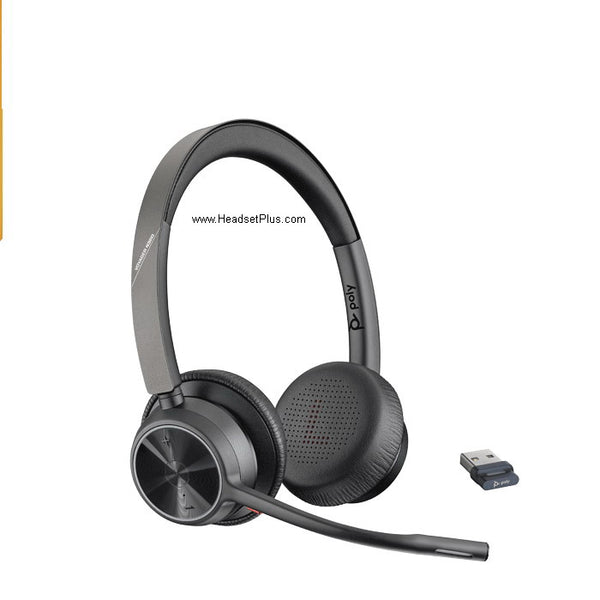
Poly Voyager 4320 Wireless Bluetooth Headset - Stereo, 164 ft Range
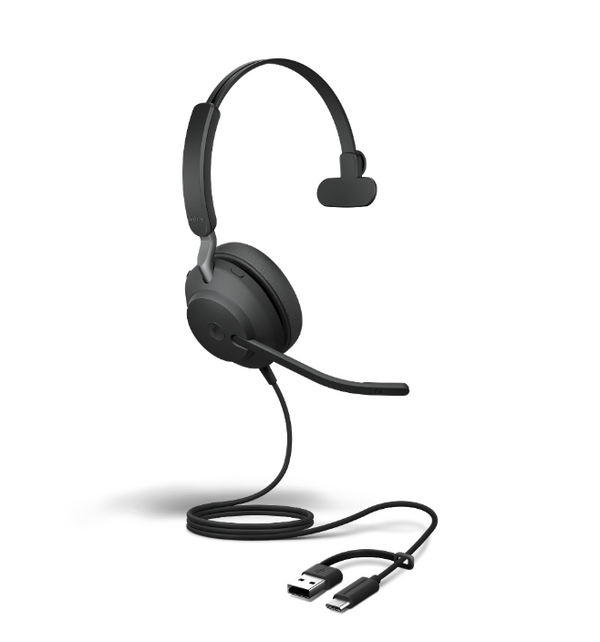
Jabra Evolve2 40 SE – Professional Wired USB Office Headset
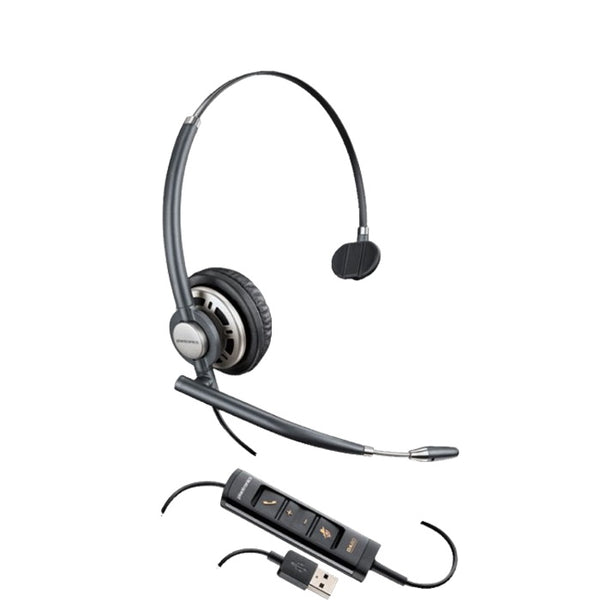
No products match “” in RingCentral Compatible Headsets.
RingCentral compatible headsets by setup
Match the headset to where you take calls: the RingCentral app on your computer, a RingCentral desk phone, or both.
| Your setup | Connection | Models here | Also needed |
|---|---|---|---|
| App, wired | USB-A or USB-C | Blackwire 3320, Blackwire 5220, Evolve2 40 SE, Engage 50 II, EncorePro HW715 and HW725 | Nothing |
| App, wireless at your desk | DECT base | Savi 8410, Savi 8445, Engage 65 SE, Yealink WH64 | Nothing |
| App, wireless on the move | Bluetooth | Voyager 4310, Voyager 4320, Voyager Focus 2, Voyager Legend 50, Yealink BH70 | A USB Bluetooth adapter for the buttons |
| App and a desk phone | DECT base plus EHS | Savi 8420, Voyager Focus 2 Office | The EHS option for your phone brand |
| Desk phone only, wired | Direct connect | Jabra Biz 1500, Jabra Biz 2300 | The Direct Connect or Yealink version |
For the buttons to answer, end and mute calls in the RingCentral app, the headset has to connect over USB, either by cable or through its USB adapter. Pairing a Bluetooth headset straight to your laptop works for talking, but RingCentral can't read its buttons that way.
Once it's connected, open Settings, then Audio, in the RingCentral app and turn on "Use headset control buttons to answer, end, and mute phone calls." If a headset stops picking up your voice later, see ringcentral microphone not working.
UC or Teams versions of RingCentral headsets
Many headsets here come in two versions at the same price. The UC version is the one to buy if RingCentral is your main calling app. The Microsoft Teams version still works in RingCentral for calls, so it only makes sense if your team uses Teams as well.
FAQ
Frequently Asked Questions
Plug in the headset, or its USB adapter if it's wireless. Then open Settings, then Audio, in the RingCentral app, choose the headset as your microphone and speaker, and turn on headset controls. The full setup, and what to do if there's no sound, is in our guide to ringcentral audio not working.
Yes. RingCentral's support site lists recommended headsets from Poly, Jabra and Yealink, and every headset in this collection is on that list or a newer version of a listed model. Two listed models we don't carry are the Jabra Evolve2 65 Flex and the Yealink UH37.
For RingCentral headsets, RingCentral's recommended list covers the Poly, Jabra and Yealink models above. For a desk phone, check RingCentral's own list of compatible deskphones before you buy, then choose a headset with the EHS or Direct Connect option for that phone.