











































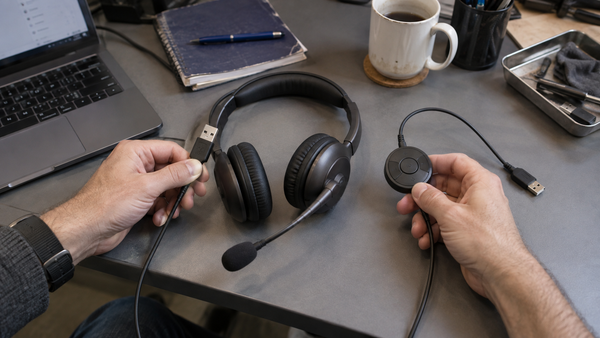
RingCentral headset compatibility has three levels. First, the computer must recognize the headset as a microphone and speaker. Second, RingCentral must use those devices for call audio. Third, optional controls such as answer, end, mute synchronization and ringing in the headset must be supported by the exact headset connection and software setup. A headset can pass the first two levels and still fail the third. For the most predictable setup, connect a business headset through its supplied USB cable or USB wireless adapter, select it inside RingCentral, update the headset software, and test controls before deploying it to the whole team.
Compatibility is more than hearing audio
- Audio compatibility means the microphone and speaker work.
- Call-control compatibility means headset buttons control RingCentral reliably.
- The same headset may behave differently over USB, a USB adapter and direct Bluetooth.
- Exact model and SKU matter because Teams, UC and connector variants can look identical.
- Test one complete workstation before ordering or deploying at scale.
When someone says a headset “works with RingCentral,” ask what worked. They may mean Windows played call audio through it. They may mean the headset’s answer button picked up a call from across the room. Those are different levels of integration.
RingCentral headset compatibility: RingCentral headset compatibility is the combination of operating-system audio recognition, RingCentral device selection and any supported call-control integration for a specific headset connection.
The three levels of RingCentral headset compatibility
Level 1: operating-system audio. The computer sees the headset as an input and output device. You can select its microphone and speaker in system settings.
Level 2: RingCentral call audio. RingCentral sends the ringtone and conversation to the intended device and receives the correct microphone.
Level 3: integrated controls. The headset’s answer, end and mute functions communicate with the RingCentral application. A busy light or remote ring alert may also depend on this layer.
A generic USB or Bluetooth audio device may handle levels one and two. Level three is where vendor integration, firmware, desktop software and the exact connection method become important.
Basic audio proves that the computer recognizes a microphone and speaker. It does not prove that RingCentral can synchronize mute status or respond to headset answer and end buttons.
USB cable, USB adapter or direct Bluetooth?
A corded USB connection is usually the simplest path because the computer sees one consistent device and there is no battery or radio pairing to manage.
A wireless headset with its supplied USB adapter gives the manufacturer more control over the connection. It may expose call-control features that are unavailable or less predictable over the computer’s built-in Bluetooth radio.
Direct Bluetooth is convenient when you do not want to occupy a USB port. It can still provide microphone and speaker audio, but the available hands-free profile, operating-system behavior and call-control integration may differ. “Bluetooth connects” and “the answer button controls RingCentral” are separate tests.
How to connect and test a headset with RingCentral
-
[step number="1" title="Connect the intended way"]
Use the USB cable, supplied USB adapter or direct Bluetooth path employees will use in production. Avoid approving one connection and deploying another.
[step number="2" title="Confirm system audio"]Open the computer’s sound settings and verify that the headset appears as both an input and an output device.
[step number="3" title="Choose devices in RingCentral"]Select the headset microphone and speaker inside RingCentral. Check the ringtone output separately if the application exposes that choice.
[step number="4" title="Update the headset"]Install the manufacturer’s supported desktop utility when appropriate, then check firmware and integration settings. Restart RingCentral after a material device or software change.
[step number="5" title="Run a two-way call"]Confirm incoming and outgoing audio, microphone level, sidetone if available, and behavior when switching between speakerphone and headset.
[step number="6" title="Test every physical control"]Test answer, end and mute from the headset. Watch whether the RingCentral mute indicator stays synchronized. Do not assume one working button proves all controls work.
[step number="7" title="Repeat after sleep and reconnect"]Wake the computer, reconnect the headset and take another call. Intermittent reconnection problems often appear only after the first clean setup.
Why the exact SKU matters
Manufacturers may sell UC, Microsoft Teams, USB-A, USB-C and charging-stand versions under nearly identical product names. The speaker and microphone can be the same while button mappings, included adapters or certification differ. Record the full part number used in a successful test.
If the team uses both RingCentral and Microsoft Teams, decide which application should receive the headset’s dedicated controls. Basic audio can work in both, but the preferred integration may follow the selected variant and software configuration.
What to do when RingCentral hears the wrong microphone
Check the device selected inside RingCentral first, then compare it with the operating-system default. Laptops often keep their internal microphone active even while call audio plays through a headset. Disconnect unused audio devices during diagnosis so their names do not obscure the result.
If the headset appears twice, one entry may represent stereo playback and another may represent hands-free call audio. Select the path that supports both microphone input and call output, then test again.
What to do when audio works but buttons do not
Confirm that you are using the supported connection path, especially the supplied USB adapter for a wireless business headset. Update firmware, open the headset vendor’s desktop utility and restart RingCentral. Close other calling applications during the test; they can compete for headset integration.
If the buttons still fail, document that result as “audio compatible, controls not verified” rather than labeling the headset fully incompatible. That distinction keeps the recommendation accurate.
When to use the RingCentral collection
Once you know the connection type and control level you require, use the RingCentral headset collection to compare models intended for the platform. Keep the collection focused on selection; keep this guide focused on understanding and testing compatibility.
Frequently asked questions
Can any USB headset work with RingCentral?
Many USB headsets can provide basic microphone and speaker audio if the computer recognizes them. Integrated answer, end and mute behavior depends on the exact model, connection and software support.
Can I use a Bluetooth headset with RingCentral?
Yes, when the computer or mobile device recognizes it for call audio. A supplied USB Bluetooth adapter may provide more predictable desktop behavior than direct computer Bluetooth.
Why does my RingCentral headset ring on the computer instead of the headset?
Check the ringtone or secondary output setting inside RingCentral and the operating-system output. Some remote-ring behavior also depends on headset software or supported integration.
Why does the mute button not match RingCentral?
The microphone can mute locally without the application receiving a synchronized control event. Verify the connection method, firmware, vendor utility and RingCentral integration.
Should I choose a Teams or UC version for RingCentral?
If RingCentral is the primary calling platform, a UC variant is usually the simpler starting point, but verify the exact SKU and required controls. If Teams is primary, a Teams-certified variant may be preferable while still providing basic RingCentral audio.

Comments (0)