


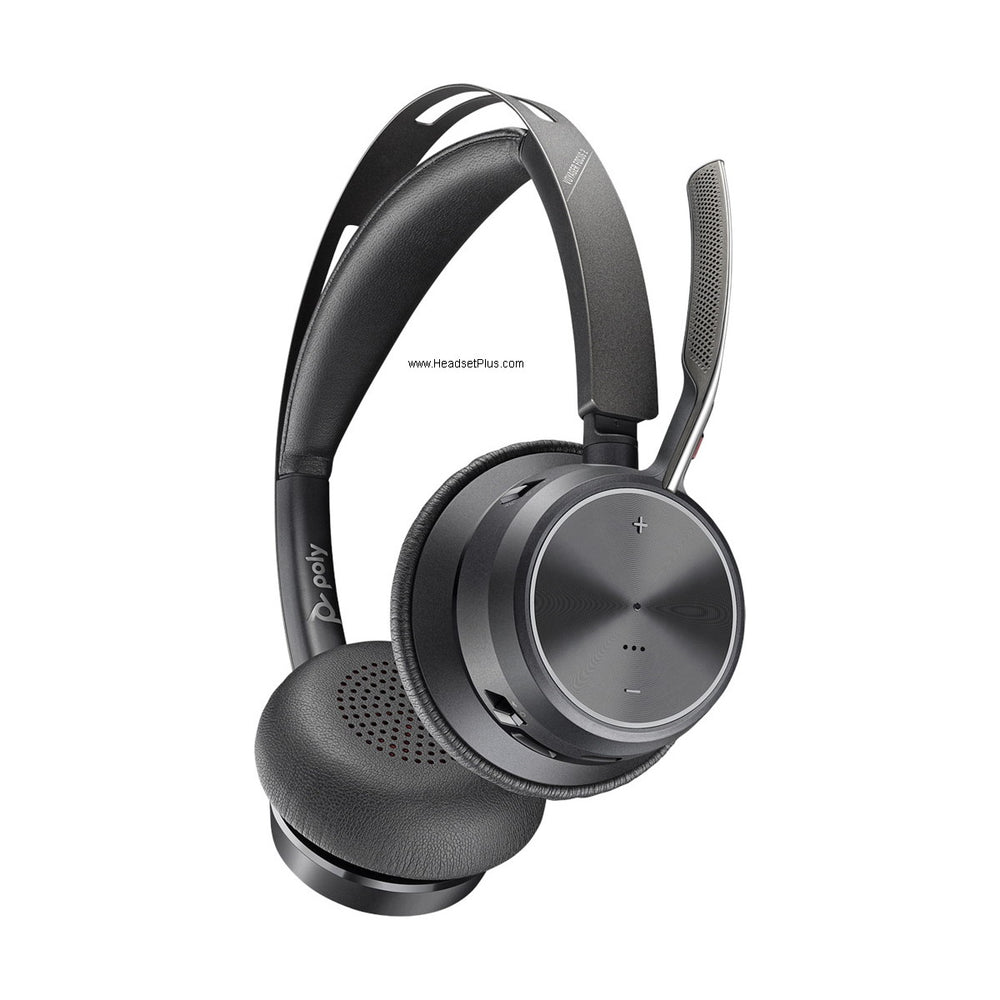












































Business headsets and Macs mostly get along, but three things trip people up: using the Mac's built-in Bluetooth instead of the included dongle, installing software in the wrong order, and a macOS permission that quietly stops the headset's buttons from working. Here's how to get all three right.
Key takeaways
- Use the USB dongle included with your headset instead of the Mac's built-in Bluetooth — better range, talk time, and microphone quality.
- Install the manufacturer's software (HP Poly Studio App or Jabra Direct) before plugging in the headset.
- Turn off the Mac's built-in Bluetooth while using the dongle so the two don't compete.
- Grant the headset software permission in System Settings, or the headset's call-control buttons won't work.
- USB headsets avoid the analog compatibility problems that 3.5 mm headsets can have on Macs.
Use the dongle, not the Mac's built-in Bluetooth
This is the single most useful thing to know, and it's counterintuitive: even though your MacBook has Bluetooth built in, you should use the USB dongle that shipped with your headset instead. The dongle is tuned specifically for that headset, and it delivers meaningfully better range, longer talk time, and better microphone quality than a generic Bluetooth connection.
Myth
The USB dongle is just for computers that don't have Bluetooth built in — my Mac does, so I can skip it.Reality
The dongle isn't a workaround for missing Bluetooth; it's a purpose-built radio matched to your specific headset. Using it typically gives noticeably better range, battery life, and microphone quality than your Mac's general-purpose Bluetooth. Keep the dongle plugged in, and turn the Mac's built-in Bluetooth off so the two don't compete for the connection.Setup order matters
- Install the manufacturer's software first, before connecting anything — the HP Poly Studio App for Poly/Plantronics headsets, or Jabra Direct for Jabra headsets.
- Plug in the USB dongle that came with your headset.
- Turn off the Mac's built-in Bluetooth from the Bluetooth icon in the menu bar, so it doesn't compete with the dongle.
- Grant the software permission in System Settings (see below), or headset button controls won't function.
If you're wondering what happened to Plantronics Hub, it was retired and its functionality moved to Poly Lens, which HP has since renamed the HP Poly Studio App — our guide to that software transition covers the naming history and what the app does now.
The permission that makes headset buttons work
Headset software doesn't intercept your keystrokes, but it does need to read USB HID device information from the headset — that's how pressing the answer button on your headset actually answers the call on your Mac. macOS requires you to explicitly grant that access, and if you skip it, the headset works for audio but the buttons do nothing.
You'll find this under System Settings → Privacy & Security, where you enable the headset software in the relevant access list, then restart the app for the change to take effect. The exact wording and location of this setting has moved between macOS versions (and was called System Preferences before macOS Ventura), so if you don't see it where you expect, check Apple's documentation for your specific macOS version.
It's also worth allowing notifications from the app, since that's how you'll be told about firmware updates for the headset.
Analog vs. USB headsets on a Mac
Analog headsets with separate 3.5 mm microphone and speaker plugs have historically had trouble on Macs — the plug may physically fit, but the microphone often won't function correctly, because the Mac's audio input expects a different signal arrangement than a PC sound card does.
USB headsets avoid this entirely. They carry audio digitally and present themselves to macOS as a complete audio device, with no adapter needed — which is why USB is the straightforward recommendation for Mac users. Our guide to why USB headsets sound better explains the underlying difference.
If you are replacing one, the USB models in our computer headset range avoid the microphone wiring problem described above.
Should I use my headset's USB dongle or my Mac's built-in Bluetooth?
Use the dongle. It's matched specifically to your headset and delivers better range, talk time, and microphone quality than the Mac's general-purpose Bluetooth. Turn the built-in Bluetooth off while using the dongle so the two don't compete.
Why don't the buttons on my headset work on my Mac?
The headset software needs permission to read USB HID device information from the headset — that's what lets the answer and end-call buttons control your Mac. Grant it under System Settings → Privacy & Security, then restart the app. Without this, audio works but the buttons don't.
What replaced Plantronics Hub for Mac users?
Plantronics Hub was retired and replaced by Poly Lens, which HP has since renamed the HP Poly Studio App. Jabra users should install Jabra Direct instead.
Do analog 3.5 mm headsets work with a Mac?
Often not reliably — the plug may fit, but the microphone frequently won't function correctly, since the Mac's audio input handles the signal differently than a PC sound card. A USB headset avoids the problem entirely and is the simpler recommendation for Mac users.
In what order should I set up a new headset on a Mac?
Install the manufacturer's software first (HP Poly Studio App or Jabra Direct), then plug in the USB dongle, then turn off the Mac's built-in Bluetooth, then grant the software permission in System Settings. Doing it in that order avoids most connection problems.
Get the dongle, the setup order, and the permission right, and a business headset works on a Mac exactly as it does on a PC. If you're choosing a headset for Mac use in the first place, USB models sidestep the most common problems — browse the range on our headsets collection, or call our team at 877-999-3838.
Was this article helpful?
Thanks for letting us know.



Comments (0)