

Plantronics Plantronics headsets  
  Top » Catalog » FAQDesk Information My Account  |  Cart Contents  |  Checkout   
Categories
CORDED HEADSETS

WIRELESS HEADSETS

HEADSET AMPLIFIERS

HEADSET PARTS/ACCESSORY

CELL PHONE HEADSETS

COMPUTER HEADSETS

CONFERENCE PHONES

CORDLESS PHONE HEADSETS

OFFICE TELEPHONES

CORDED HEADSET FAQ

WIRELESS HEADSET FAQ

CONFERENCE PHONE FAQ
Specials more
Plantronics CS55H Wireless Headset Home Edition
$279.95
$259.95
Latest products more
Jabra BT3010 Bluetooth Headset
$44.95
Manufactures
Latest FAQs
- Polycom IP Phone & Plantronics Headset Compatibility
- Plantronics Calisto Pro Wireless Headset Phone FAQ
- Plantronics SupraPlus Wideband Headsets FAQ
- Wireless Headsets for Avaya Telephones
- Polycom Soundstation 2W Troubleshooting & FAQ
- Common wireless headset Questions and Answers
- Common Misconceptions of Wireless Headsets
- Plantronics Bluetooth Headset MultiPoint Technology
- What is Jabra Bluetooth Mutliuse Wireless Headset?
- GN Netcom Computer Headset and Microsoft Windows Vista
- Why my computer headset mute not working?
- Headsets for Radio Dispatch, Emergency or Air traffic control
- Cisco IP Phone Headset Compatibility Guide
- Polycom Soundstation2 Cell Phone use & Caller ID
- GN Netcom/Jabra Warranty Informations
Latest News
- Reducing Neck and Back Pain in the Office
- Polycom Soundstation 2 Conference Phone
- GN Netcom 9120 Wireless Headset Information
- Cell Phone Headsets. It’s the law in most states while driving
- Plantronics CS55 Wireless Headset System
- Plantronics CS50 Wireless Headset Information
- Jabra Bluetooth Headsets – history, review, benefits
- How to Pick the Right Telephone Headset for your office
- Polycom: Company history and conference phone information
- Why we all should all use Plantronics Headset in the office
- Benefits of using a Wireless Headset at work
- Wireless Headset Battery Memory Loss
- New Hands Free Law Driving Law Taking Affect
- Avaya Headsets for Avaya one-X 9600 Series IP Phones
- Plantronics Bluetooth QuickPair Technology
We proudly accept
FAQ Information. HEADING_TITLE
- How do I setup the Plantronics CS50/CS55?   Date: Tuesday November 29, 2005
FAQ Summary:
How do I setup the Plantronics CS50 or Plantronics CS55

FAQ Content:

On the bottom of the Plantronics CS50 or Plantronics CS55 base unit there are 2 ports. One has an icon of a "Handset" and one has the icon of a "telephone".

Unplug the "Handset" from the base of your existing telephone and plug it into the Plantronics CS50 base unit where it has the icon of the "Handset". Then take the short cable that came with the CS50 and plug it into the port on the base of the CS50 where the icon of the "telephone" is, Then plug the other end into where your "Handset" was on your existing telephone.

The Plantronics CS50 or Plantronics CS55 has both transmit (how you are heard) and Receive (how you hear) controls on the unit itself.

The Master Transmit controls are the ABCD switch settings on the bottom of the base. A is the lowest and D is the highest setting. You can fine tune this setting with the Plus (+) and minus (-) buttons on the back of the base that are above and below the picture of the microphone.

The Master Receive setting is on the back of the base (below the picture of the microphone) there is a 1234 switch 1 being the highest setting and 4 being the lowest setting. You can fine tune this setting by using the volume control on the headset itself. This is the rocker volume wheel on the back of the headset (opposite of the microphone).

The headset volume control also doubles as a mute switch if you press it in, instead of rocking it back and forth.

There are also configuration settings on the left hand side of the base. This is a dark grey dial with a 1234 on it. There are notches to the right of this dial. Whatever number is lined up with the notches it what setting you are on. This needs to be set to the clearest setting.

There is a silver button on the headset itself which is your “Talk button”. This is what you press to use the headset and or transfer the call from the headset back to the hand receiver.

There is also a switch on the right hand side of the base which is your the IntelliStand feature.

When the CS50 or CS55 is used in conjunction with the Plantronics HL10 handset lifter you can enable the IntelliStand feature.

The IntelliStand feature senses when the headset has been removed or placed into the CS50 base unit which automatically activates the Handset Lifter and enabling headset/handset mode to answer or end the call.

There is a switch towards the bottom on the right side of the base unit that will switch the IntelliStand feature On and Off. Make sure the AC Power is plugged into the wall and then you can adjust the configuration setting to the clearest setting.


Also see our Plantronics CS50/CS55 interactive setup guide


Beeping Sounds from the Plantronics CS50/CS55:

One beep every 10 seconds is caused by a low battery warning. Recharge the battery by returning it to the base charge cradle for one to three hours until charge light stays lit or quits blinking.

Two beeps is an out of range warning. Move closer to the base unit.

Three rapid beeps every 15 seconds indicates your mute is on. Press the
mute control once to turn it off. When the optional HL10 or HL1 handset lifter is connected, three rapid beeps indicate a call is coming into the headset. Press
the talk button on the headset to answer the all.


Plantronics CS50/CS55 System Reset


To recover from some fault conditions (refer to the Troubleshooting Section) you may need to perform a system reset.


To perform the system reset, follow this procedure:


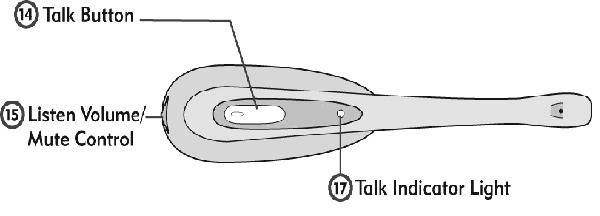
1. Press both the talk button (14) and the mute control button (15) on the headset for 5 seconds.

Plantronics CS55


2. When the talk indicator light (17) on the headset blinks, release both buttons.


3. Press the talk button again.


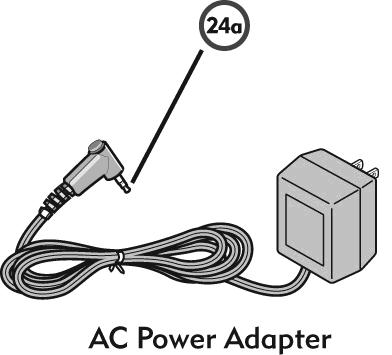
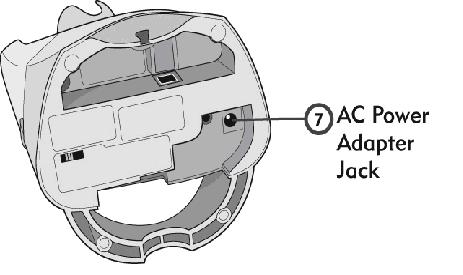
4. Next reset the base unit by disconnecting the AC power adapter (24a)

Plantronics CS50


from the AC power adapter jack (7) for 5 seconds, then reconnect.

Plantronics CS55 Reset


The system reset operation is complete.



FAQ Statistics:
Viewed:18555
Continue
Shopping Cart more
0 items
Quick Find
 
Information
Shipping
Returns & Policies
Contact Us
Site Map
Privacy Notice
Links
Directory
Latest Headset News
Reviews more
Plantronics 510 Voyager Bluetooth Cell Phone Headset
Quality is good. Difficult to wear if you also wear glasses. ..
3 of 5 Stars!
Best Sellers
Plantronics S12 telephone headset convertible system
01. Plantronics S12 telephone headset convertible system
Plantronics CS50 + HL10 Wireless Headset Lifter Combo Package
02. Plantronics CS50 + HL10 Wireless Headset Lifter Combo Package
Plantronics CS50 Wireless Headset System
03. Plantronics CS50 Wireless Headset System
Plantronics CS55 + HL10 Wireless Headset Lifter Combo Package
04. Plantronics CS55 + HL10 Wireless Headset Lifter Combo Package
Plantronics S11 Telephone Headset System
05. Plantronics S11 Telephone Headset System
Plantronics CS50 CS55 Replacement Battery
06. Plantronics CS50 CS55 Replacement Battery
Plantronics CS55 Wireless Headset
07. Plantronics CS55 Wireless Headset
Plantronics HL10 Lifter
08. Plantronics HL10 Lifter
Tell A Friend
 
Tell someone you know about this product.


Related links and products:Headset Plus is a leader supplier of Plantronics | cordless headsets | Plantronics CS50 | Plantronics 510S | Plantronic Headsets | Cisco Headset | Plantronics CS55 | Plantronics S12 |Plantronics CS351| gn netcom 9120 | Plantronics CS70 |GN Netcom 9330 | GN Netcom 9350 | wireless conference phone | Polycom Soundstation 2 | Polycom Soundstation 2W | USB Headset | Plantronics M12 Vista | ClearOne Conference Phone | computer headset | GN Netcom Headsets | Plantronics M22 vista | Plantronics CS361 | Plantronics CS361N

Phone System Forum | Find Telephone Installers in your area