













































Avaya phone buttons guide: the short version
Avaya's J100, 9600 and 1600 desk phones all have their own keys for Mute, Speaker, Headset and Volume, plus a light that tells you a voicemail is waiting. Hold, Transfer and Conference are where they differ: the 1608 and 1616 have a dedicated key for each, while the J169, J179, 9608 and 9611G put them on the screen as softkeys.
A lit Mute key means the caller can't hear you. A lit Speaker or Headset key shows where the call is, and on a J179 or a 1600-series phone, pressing that lit key again ends the call.
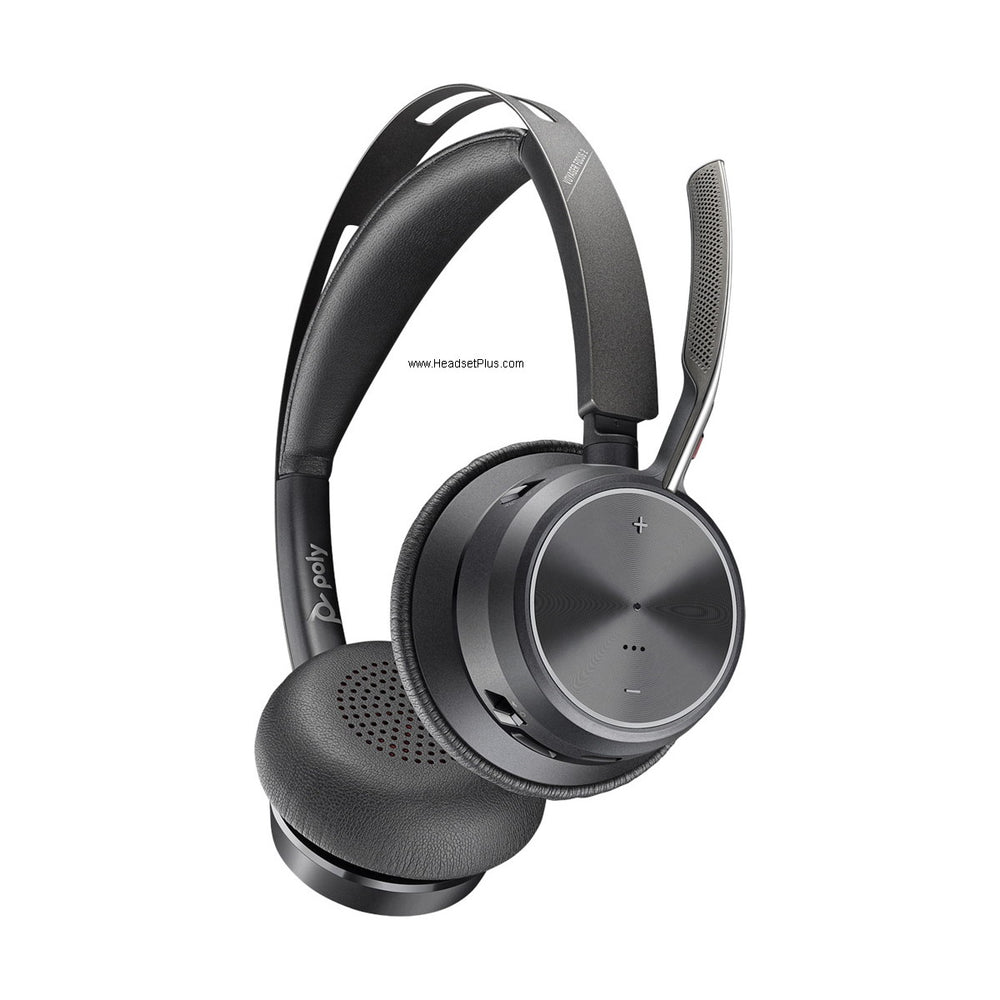
This guide covers three families: the J169 and J179, the 9608, 9608G and 9611G, and the 1608 and 1616. Softkey names shift a little depending on whether your office runs Avaya Aura or IP Office, and where that matters it's called out below. If you wear a headset on one of these phones, our avaya headset collection sorts compatible models by the phone family they fit.
Avaya phone button functions, model by model
Every family has its own Mute, Speaker, Headset and Volume keys. The call-handling functions are the ones that change, so find your phone's column and read down.
| Function | J169 / J179 | 9608 / 9611G | 1608 / 1616 |
|---|---|---|---|
| Hold | Hold softkey, or the call's line button | Hold on the Phone screen | HOLD key |
| Transfer | Transfer softkey | Transfer on the Phone screen | TRANSFER key |
| Conference | Conf softkey (More, then Conference on Aura) | Conference on the Phone screen | CONFERENCE key |
| End the call | Press the lit Speaker or Headset key, or hang up | Drop call on the Phone screen | DROP key |
| Mute | MUTE key, lit while muted | Mute key, lit while muted | MUTE key, lit while muted |
| Speakerphone | SPEAKER key | Speaker key | SPEAKER key |
| Headset | HEADSET key | Headset key | HEADSET key |
| Voicemail waiting | Message lamp | Red light at top right, plus a lit Message key | Message waiting light |
On the 9608 and 9611G, press the Phone key first if you don't see the call. Hold, Conference, Transfer and Drop call are all options on the Phone screen, not physical keys.
Avaya phone hold button: putting a call on hold
To put a call on hold on a J179, press the Hold softkey or the call's own line button. On a 1608 or 1616 there's a HOLD key, and on a 9608 you press Hold on the Phone screen. The held call's line button then flashes green quickly, which is how you find it again among several lines.
While the call is held, the caller hears music on hold, or a double beep every few seconds if your system has no music set up. To pick the call back up on a 9608, press Resume, the OK button, or the held call's line button. You don't need Hold at all to take a second call: answering a new call while you're on one puts the first on hold automatically.
The transfer button on an Avaya phone, and conference calls
To transfer a call, press Transfer, dial the number, then press Complete. When you press Complete decides the kind of transfer:
- After the person answers: you announce the caller first. Avaya calls this a supervised or attended transfer.
- While it's still ringing: the call goes straight through unannounced.
- If they don't pick up: press Cancel and you're back with your caller.
On Aura systems the J169 and J179 add a step: press Transfer, dial and press Call, then Talk to ring the other person, then Complete. Pressing Now instead of Talk sends a blind transfer with no consultation.
To start a conference on a J179, press Conf (on Aura, More and then Conference) and your caller goes on hold. Dial the third person, and when they answer, press Conf again on IP Office or Join on Aura. The 1608 and 1616 have a CONFERENCE key that starts the call and adds each new person. To drop one person from a conference on a J179, highlight their name and press Drop.
The Avaya phone mute button
Press Mute during a call and the caller can't hear you. The Avaya mute button stays lit while mute is on, and the J169 and J179 also show a muted-microphone icon on the screen. Press Mute again to talk.
The catch is switching devices. Avaya's 9600 guide says a call on mute comes off mute the moment you switch between the handset, headset or speakerphone. So if you mute on the handset and then press Headset, the other end can hear you again. Mute after you switch, not before.
On a J179 conference you can also mute one caller rather than yourself: highlight them in the conference list and press Mute. And if you're wondering how to mute an Avaya phone without a mute button, on an older set that has none, a headset with its own mute switch does it at the microphone, whatever the phone supports.
The Avaya phone speaker button
To put an Avaya phone on speaker, press Speaker. It answers a ringing call handsfree, or moves a call you're already on to the speakerphone, and you can put the handset down. To go back, lift the handset or press Headset. Pressing the lit Speaker key ends the call, so reach for the handset rather than the key when you only want privacy.
The Volume key follows whichever device is live. During a call, + and - change the handset, headset or speaker volume, and each one keeps its own level. With no call up, the same key sets the ringer. On a J169 or J179, holding - down turns the volume off entirely, so if a phone suddenly seems silent, press + before anything else.
The headset key
The Headset key does what lifting the handset does. Press it to answer or start a call on a corded headset plugged into the phone's headset socket. The key stays lit for as long as the call is on the headset, and pressing it again ends the call. Mid-call, press Headset to move off the handset, then hang the handset up.
On IP Office phones such as the 9504 and 9508, ending a headset call with Drop rather than the Headset key leaves the phone in headset mode, so the next call rings in your ear. That's handy if you wear the headset all day.
A wireless headset needs one more thing to answer and hang up from away from your desk.
EHS: Electronic hookswitch: the link that lets a wireless headset answer and end calls on the desk phone remotely, instead of you pressing the Headset key.
Avaya controls it with a setting called Headset Signaling, under Call Settings in the phone's menu. On a J169 or J179 the choices are Disabled, Switchhook and Alert, or Switchhook only. The Alert option is the one that plays the ring in your headset. On a 9608, Switchhook and Alerts plays an alert tone in the headset every 5 seconds while a call rings, and None sends no ring at all. The J169 and J179 also have a Headset Profile setting under Advanced Options, where you pick the profile that matches your headset.
Bluetooth is model-specific. The J179 supports it once its wireless module is installed; the J169 doesn't support it at all. In the 9600 family, Avaya's guide lists Bluetooth setup for the 9641G and 9641GS.
For which cable or adapter your model needs and how to plug it in, see our avaya phone headset setup guide.
The Avaya phone red light and what it means
A red light in the top-right corner of a 9600-series phone like the 9608 means you have a voicemail waiting. The Message key lights up with it, and pressing Message connects you straight to your mailbox. On IP Office systems the message light stays on until you've played every new message, so a light that won't go out often means one message you skipped.
If it's on and your own mailbox is empty, it may not be yours: IP Office can be set to show the light for a hunt group's mailbox or another user's. A red light that flashes when a call comes in is Visual Alerting, a setting on the 9600 phones that blinks the same light as a ringer.
Red on a line button means something else. On a 1608 or 1616, a steady red lamp marks the line that will be used when you lift the handset. On a 9608, red and green together mean the phone is off-hook.
Avaya phone symbols and icons on the screen
The J169 and J179 share one set of screen icons; the J169 draws them in grayscale and the J179 in color. These are the Avaya phone icons people most often ask about:
- Muted microphone: your microphone is muted.
- Missed call: a call you didn't answer, also shown in Recents. On a 9608 the History key lights up and the top line counts them.
- Call on hold / conference on hold: separate icons for a held call and a held conference.
- Do not disturb, Send All Calls and EC500: each shows while that feature is on. EC500 rings your calls on another phone at the same time as your desk phone.
- Failover: the phone has lost its connection to the call server and some features may not work until it reconnects.
- Wideband codec: the call is using a higher-quality audio codec.
- Low network performance: local network trouble that may make the call sound worse.
The left and right arrows beside a list mean there are more pages; use the navigation keys to reach them.
Line buttons, feature buttons and how to program Avaya phone buttons
The row of buttons beside the screen are line and feature keys, and their LEDs report status. A green LED blinking slowly is a call ringing on that line, green flashing fast is a call you put on hold, and a steady green on a feature key means that feature is switched on.
On a 1608 the first 3 of its 8 programmable buttons are call appearances, the lines you make and take calls on. The 1616 has 16, and takes up to 3 add-on button modules of 32 more. Any button not used as a line can become a feature button, set by your administrator or, for some features, by you from the phone's menu.
On IP Office Basic Edition systems running in key system mode, the first two programmable buttons are fixed as Intercom 1 and Intercom 2, and that Avaya phone intercom button is how you make and take internal calls. On the same systems, the feature button on an Avaya phone works with codes: press Feature, then dial the code, and most of those features can be moved onto a programmable button instead.
On a J169 or J179 you can rearrange the keys yourself if your administrator allows it: Main Menu, Settings, Phone, then Phone keys customization lets you add, move, relabel or delete contacts and features. If that option is missing, customization is blocked on your extension.
Why does my Avaya phone go to speaker automatically?
An Avaya phone sends a call to the speaker when you answer by pressing a line button and its audio path is set to Speaker. On a 9608, change it under Options & Settings, Call Settings, Audio Path, and pick Headset if you wear one. IP Office phones have the same choice, called the default handsfree audio path.