





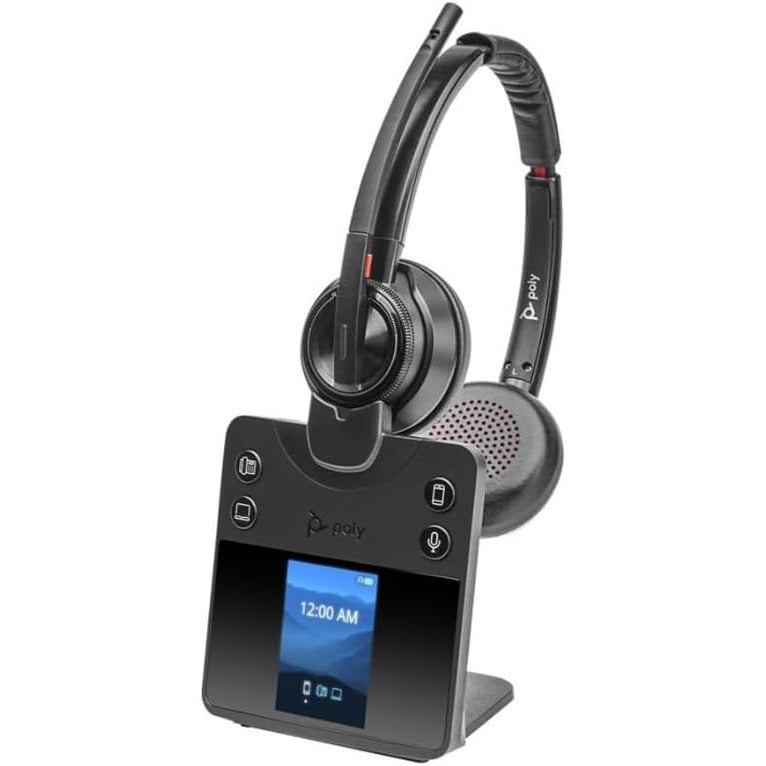









































Headset Mic Test
Your audio never leaves your browser.
This test needs JavaScript. Turn it on for this site, or use a current version of Chrome, Edge, Firefox or Safari.
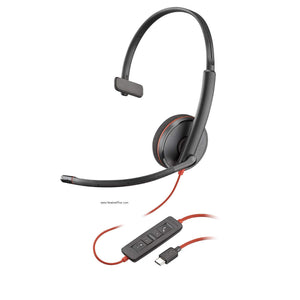
How to test your headset
Press Start headset test and allow the microphone. The full check takes about a minute and tells you what the person on the other end of your call hears:
- Right device. Which mic your computer is actually using, so a webcam or laptop mic can't stand in for your headset without you knowing.
- Level and room noise. Whether your voice comes through loud and clear, and how much of the room comes with it.
- Voice quality. Whether the headset sends HD voice or phone-quality audio.
- Speakers and echo. Left and right in the right ears, and whether your mic picks up your own earpiece.
You finish with a scorecard, one fix for each problem, and a report you can paste into a help desk ticket. Nothing you record leaves your browser.
Headphone test: left and right
The Speakers tab plays sound in one ear at a time. If you hear the left sound on the right, the headset is on backwards or the balance slider in your sound settings is off center. If one side is silent, push the plug all the way in, then try another port. A mono headset only has one earpiece, so one side is all you should hear. The phase test tells you whether both sides are wired the same way: in phase sounds centered, out of phase sounds wide and hollow.
Headset mic not working?
Work through these in order. Most headset mics that "don't work" are fine.
- Check the mute. Most office headsets have a mute button on the cord or earcup, and many mute when you lift the boom.
- Check which mic is in use. If the test names your webcam or laptop, pick your headset in the microphone list. It tells you when your computer's default mic is something else.
- Close other calling apps. If the browser says the mic is busy, Teams or Zoom still has it.
- Try another USB port on the computer itself, not a hub or dock.
To make your headset the default mic in Windows 11, open Settings, then System, then Sound. Under Input, choose your headset. For calls, open More sound settings, go to the Recording tab, right-click the headset and choose Set as Default Communication Device. On a Mac, open System Settings, then Sound, and choose the headset on the Input tab.
Why your headset sounds muffled
Usually it's Bluetooth. When an app opens the mic, a Bluetooth headset paired straight to a computer switches to hands-free mode, which often carries sound only up to about 4 kHz, the range of an old landline. The voice quality check shows it:
| Result | What it means |
|---|---|
| Narrowband, about 4 kHz | Phone quality. Plug in the USB dongle that came with the headset, or use a USB headset. |
| Wideband, about 8 kHz | HD voice, what most USB office headsets send and what Teams and Zoom carry. Good. |
| Full band | More range than a call needs. Typical of laptop and podcast mics. |
Headsets like the Jabra Evolve2 65 and Poly Voyager Focus 2 ship with a dongle for exactly this reason. For a desk, a USB headset avoids the problem entirely.
Headset echo: why callers hear themselves
If people hear their own voice come back, sound from your earpiece is reaching your mic. The echo test plays a short tone and listens for it. If the mic hears it loudly, turn the headset volume down; on-ear and open-back headsets leak more than closed ones. If you heard the tone from your computer speakers, your calls are playing there, so pick the headset as the speaker in your calling app. The test also shows the round-trip time from earpiece to mic.
Test your headset in Teams, Zoom and Google Meet
Each app keeps its own mic setting, so a headset that passes here can still sound wrong on a call.
Microsoft Teams
Open Settings and more (the three dots next to your picture), then Settings, then Devices. Choose your headset under Speaker and Microphone, then use Make a test call.
Zoom
Open Settings, then Audio. Pick your headset for Speaker and Microphone and use Test Speaker and Test Mic. Zoom also runs its own test meeting you can join before a call.
Google Meet
On the join screen, click Check your audio and video. During a call, open More options, then Settings, then Audio, and pick the headset for both microphone and speakers.
Questions
Is my recording uploaded anywhere?
No. The audio stays in your browser and is gone when you close the page. The test only sends your headset's name, to find it in our catalog, plus the usual site analytics, which record that a test ran and its result, never the sound.
If my headset passes here, will it sound the same in Teams?
Close to it. The test measures the headset with the browser's own echo and noise processing off, so you hear the hardware itself. If a call sounds different, the app is almost always set to a different device.
Can I test a headset on my phone?
Yes. The mic, noise, voice quality and echo checks work in Safari on iPhone and Chrome on Android. Choosing a different speaker from the page only works in Chrome and Edge on a computer.