





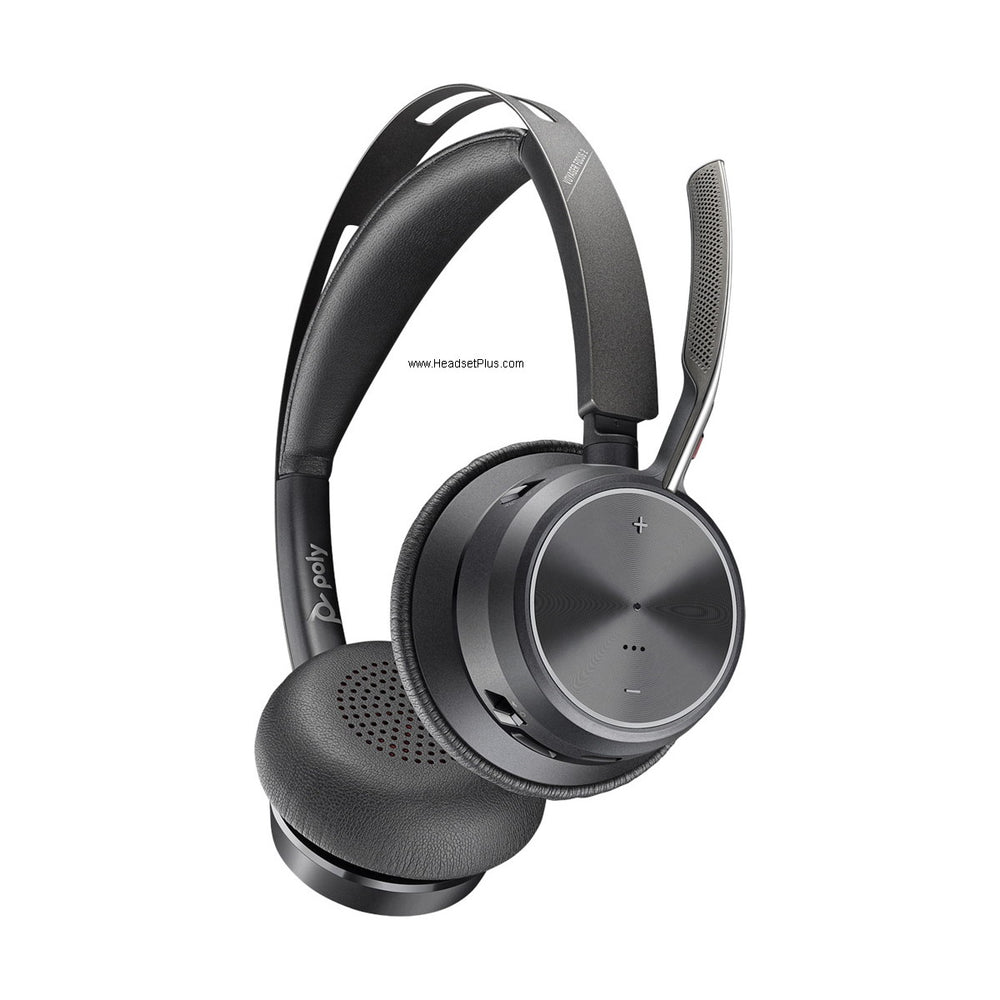











































How to connect a headset to a Cisco IP phone
How you connect a headset to a Cisco IP phone depends on which ports that particular phone has, and the ports vary inside a single series. The Cisco 7821, 7841 and 7861 take a wired headset in the RJ-9 port and a wireless headset base on the AUX port, while the Cisco 7811 has no headset port at all. The Cisco 8800 Series will hold an analog, a Bluetooth and a USB headset connected at the same time, though only one of them is live on a call. A wired headset is plug and go. A wireless one answers calls from across the room only if you add an EHS cable and switch on hookswitch control, and on Cisco Unified Communications Manager 12.5.1 SU2 and later that switch moved off the server and onto the phone. Port first, then cable, then setting.
What actually decides whether this works
- The Cisco 7811 is the only phone in the 7800 Series with no headset support, so no cable fixes it.
- Wired headsets need nothing configured. Only wireless headsets need an EHS cable and a hookswitch setting.
- Cisco removed the Wireless Headset Hookswitch Control parameter from Unified CM in 12.5.1 SU2, and users now set it on the phone.
- A Cisco 560 Series base connects over a USB Y-cable instead, which takes the EHS cable question off the table.
Two Cisco phones sitting a desk apart, both bought in the same order, can need completely different accessories. That is the part that catches people, and it is worth ten seconds at the back of the phone before anything gets ordered.
Check which ports your Cisco phone has first
The port on the back of the phone decides every other choice, and Cisco does not make it consistent across a series. Cisco's accessories guide for the 7800 and 8800 Series states that the 7811 is the only phone in the 7800 Series that does not support a headset, because it has no AUX port. The 7821, 7841 and 7861 all support an analog headset, and all three support a wireless headset by connecting its base station to that auxiliary port.
On the 8800 Series the picture opens up. Cisco's multiplatform administration guide says an analog, a Bluetooth and a USB headset can all be connected to the phone at once, with only one of them usable at a time, and that a USB headset or wireless base can go in either the back USB port, where the model has one, or the side port.
If you're still choosing between two of these phones, the headset ports are most of the difference, and our page on choosing between the 8841 and 8851 lays them out side by side.
One detail from that same guide saves a lot of pointless troubleshooting: the analog port is a wideband-capable RJ-9 audio port, and the phone cannot detect when an analog headset is plugged into it. That is why an analog headset is listed in the Accessories window by default. Seeing it on screen tells you nothing about whether anything is actually attached.
EHS: Electronic hook switch: a cable and protocol pair that electronically links a wireless headset to the phone, so that, as Wikipedia's entry on electronic hook switch puts it, calls can be answered and ended, ringtones played, and volume and mute controlled from the headset itself.
Connect the headset step by step
The whole procedure is five moves, and the last two only apply if the headset is wireless.
Identify the port, not the phone
Look at the back of the phone rather than the model number on the label. An RJ-9 headset jack takes a wired headset directly. A separate AUX port is what a wireless base station needs for remote answering. A USB port, on the 8800 Series and on some 7800 models, takes a USB headset or a wireless base without any adapter cable at all.Plug in the headset or the base
A wired headset goes straight into the RJ-9 port. A wireless headset never plugs into the phone itself: its charging base does, and the headset talks to the base over DECT or Bluetooth.Confirm the phone can see it
Press the Applications or Settings button, then choose Status, then Accessories, and look for the headset in the list. On an analog headset this listing appears whether or not anything is connected, so treat it as confirmation only for USB and Bluetooth headsets.Turn on hookswitch control
Skip this for a wired headset. For a wireless one, the phone has to be told to expect the EHS cable before the answer button on the headset does anything. Where that setting lives depends on your Unified CM version, covered in the next section.Make a test call from the headset
Dial from the phone and confirm the audio path, then walk away from the desk and answer an incoming call using the headset button alone. If the first works and the second does not, the cable is fine and the setting is not.
The hookswitch setting moved off CallManager and onto the phone
Cisco changed where this is configured, and most guides still describe the old place. Discussion in the Cisco Community makes the sequence clear: before Unified CM 12.5.1 SU2, an administrator enabled Wireless Headset Hookswitch Control per phone under Device, then Phone, in CM Admin, and the end user could do nothing about it. In 12.5.1 SU2 and later that parameter was removed.
The Cisco IP Phone 8800 Series release notes for firmware 12.7(1) describe where it went. Users now enable electronic hookswitch control from the phone itself, under Admin settings and then Aux port, with the note that this parameter was previously located on the phone page in Cisco Unified Communications Manager. Firmware release 12.7(1) or later is the requirement, along with admin settings being enabled in the phone configuration page.
What the old guides say
If EHS is not working, call your phone administrator and have them enable hookswitch control in CallManager.What Cisco changed
On Unified CM 12.5.1 SU2 and later there is nothing there to enable. Cisco removed the parameter and moved it onto the phone, under Admin settings and Aux port, so on a current system the person who can fix this is usually the person holding the handset.Which EHS cable your Cisco phone needs
EHS cables are model-specific because the signaling is, and the manufacturers publish the lists. Jabra states that the Link 14201-43 gives remote electronic hook switch control on the Cisco Unified IP phone 6945, 78xx, 79xx and 88xx series. The older Link 14201-16 covers a narrower and much older set: Jabra lists the 7942G, 7945G, 7962G, 7965G and 7975G and newer releases, working with the GN9100 and GN9300 at up to 450 feet from the desk.
Two numbers on one page, and the overlap between them is the trap. A cable bought for a 7962G six years ago is not the cable a new 8841 wants. Match the cable to the phone in front of you, then match the wireless headset to the cable, which is the order our range of headset for cisco desk phone options is built around.
A Cisco 560 Series base sidesteps the EHS cable entirely
Cisco's own wireless headsets connect through a USB Y-cable rather than an EHS adapter, which removes the compatibility question instead of answering it. Cisco documentation for the 500 Series says both the standard base and the multibase ship with a USB to USB cable for phones with USB connectivity and a USB Y-cable for Cisco IP phones without a USB port, and that the multibase connects up to three call sources over Bluetooth, the USB connector or the Y-cable.
Range is documented rather than estimated: about 145 feet, or 45 meters, by default, with administrators able to raise it to about 330 feet, or 100 meters. Cisco also publishes the awkward part, and it is worth knowing before the box is opened. The multibase is incompatible with Cisco IP Phone 7800 Series phones running on Power over Ethernet, and those connections need an external power supply. If your 7841s are PoE-powered, which most are, that is a power brick per desk that nobody budgeted for.
The headset connects but remote answering still does not work
Work the power cycle before you work the configuration, because it costs twenty seconds. With the headset in its charging base, unplug the EHS cable from the base for about ten seconds and plug it back in fully. If nothing changes, do the same at the phone end, and while the connector is out, check that its fork is seated all the way in and that no pins are bent.
After that, the remaining causes are the ones this article started with: a cable built for a different Cisco model, or hookswitch control switched off in whichever place your Unified CM version keeps it. If audio works through the headset but the answer button does not, the cable is almost never the problem. Call our team on 877-999-3838 with the phone model and the firmware version from Settings, Model Information, Load File, and we will work through it with you.
How do I connect a headset to a Cisco 7841?
A wired headset plugs straight into the RJ-9 headset port on the back of the Cisco 7841. A wireless headset connects through its base station, which Cisco documents as attaching to the auxiliary port on the 7821, 7841 and 7861. Remote answering from the headset also needs hookswitch control enabled, which on Unified CM 12.5.1 SU2 and later is set on the phone under Admin settings and Aux port.
Does the Cisco 7811 support a headset?
No. Cisco's accessories guide for the 7800 and 8800 Series states that the Cisco IP Phone 7811 is the only phone in the 7800 Series that does not support a headset, because the 7811 has no AUX port. No cable or adapter changes that, so a 7811 user who needs a headset needs a different phone model.
Where is hookswitch control enabled on a Cisco phone now?
On Cisco Unified Communications Manager 12.5.1 SU2 and later the Wireless Headset Hookswitch Control parameter was removed from the server. The Cisco 8800 Series release notes for firmware 12.7(1) describe users enabling electronic hookswitch control on the phone instead, under Admin settings and then Aux port, with firmware 12.7(1) or later and admin settings enabled in the phone configuration page.
Do I need an EHS cable with a Cisco 561 or 562 headset?
No. The Cisco 561 and 562 connect through their base, and Cisco ships both the standard base and the multibase with a USB to USB cable for phones that have USB connectivity and a USB Y-cable for Cisco IP phones without a USB port. One caution: Cisco documents the multibase as incompatible with Cisco IP Phone 7800 Series phones using Power over Ethernet, where an external power supply is required.
EHS behaviour varies by phone rather than by headset. The VoIP headsets collection is the wider list.
Comments (0)