





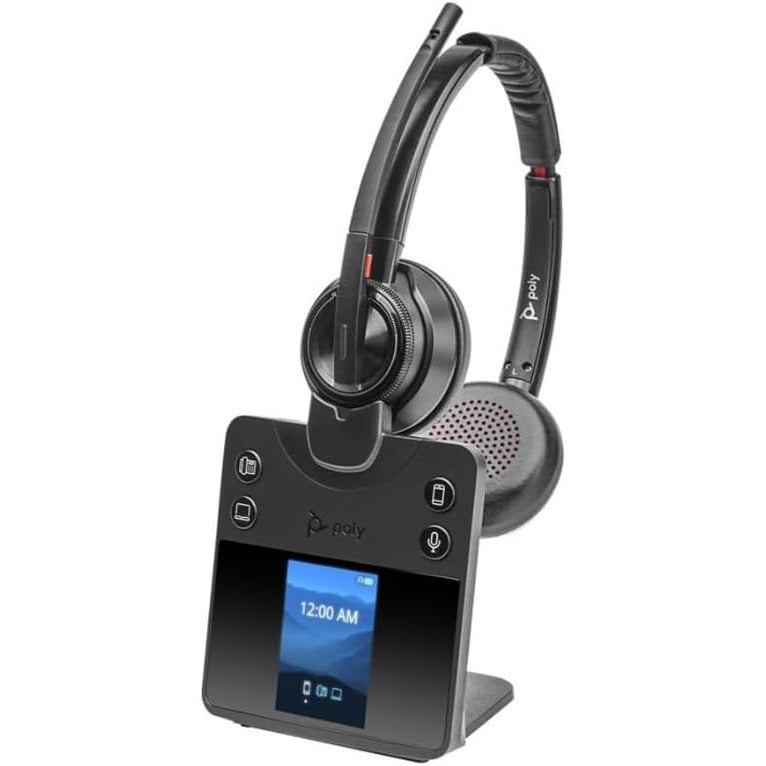











































If you've set up your Jabra Pro 9460, 9460-Duo, or 9470 and the microphone volume doesn't seem right, here's the key thing to know: the touch-area volume control on the side of the headset only adjusts what you hear — it has no effect on your microphone level. Mic volume lives in a different, easy-to-miss menu.
Key takeaways
- The side touch-area volume control adjusts speaker volume only — it doesn't affect microphone level.
- Microphone volume isn't in the regular Settings menu — it's a separate menu only accessible while the headset is active.
- Activate the headset (on a call, or with a dial tone), press settings, and scroll to "Microphone Level" to adjust it.
- These headsets are discontinued; the current equivalent is the Jabra Engage 65 SE.
Why the volume control doesn't fix microphone issues
It's an easy assumption to make: the touch area on the side of the headset clearly controls volume, so it must control everything audio-related. It doesn't. That control is speaker volume only — what you hear. Microphone volume — what your caller hears — is a separate setting, and it isn't in the regular Settings menu at the top-right of the touch screen either, which is why it's easy to search for and not find.
Myth
If my caller can't hear me well, I should adjust the volume control on the side of my Jabra Pro headset.Reality
That control only adjusts what you hear through the speaker — it has no effect on microphone volume. Adjusting it won't change how loud you sound to your caller. Microphone level is a separate setting, accessible only through a specific menu while the headset is active.How to adjust the microphone level
The microphone level setting is only accessible while the headset is activated — either on an active call, or activated and receiving a dial tone. It won't appear if the headset is idle.
- Activate the headset (start a call, or get it to a dial-tone state).
- Press the settings button.
- Scroll down to "Microphone Level."
- Adjust the level. If you have someone available to listen and confirm, use their feedback. If not, adjust until you can just barely hear your own voice echo back at your normal speaking volume — that's a reasonable target level.
These headsets are discontinued — what to use now
The Jabra Pro 9460, 9460-Duo, and 9470 are part of the discontinued Jabra Pro 900 series. The current equivalent is the Jabra Engage 65 SE, which replaces the entire Pro 900 and original Engage lineup with improved range, battery life, and headset density.
Why can't I find the microphone volume setting on my Jabra Pro 9460 or 9470?
It's not in the regular Settings menu — it's only accessible while the headset is active, either on a call or receiving a dial tone. Activate the headset, press settings, and scroll to "Microphone Level" to find it.
Does the touch-area volume control on the Jabra Pro 9460/9470 adjust microphone volume?
No. The touch-area control only adjusts speaker volume — what you hear. Microphone level, which affects what your caller hears, is a separate setting found in the special menu accessible only while the headset is active.
How do I know if my microphone level is set correctly?
Ideally, have someone listen on a call and confirm the level sounds right. Without that, adjust the microphone level until you can just barely hear your own voice echo back to you at your normal speaking volume — that's a reasonable target.
Is the Jabra Pro 9460/9470 still available?
No, both are discontinued as part of the Jabra Pro 900 series. The current equivalent is the Jabra Engage 65 SE, which offers improved range, battery life, and support for more headsets per location.
If your caller can't hear you clearly on a Jabra Pro 9460, 9460-Duo, or 9470, the microphone level menu — not the side volume control — is where to look. Call our team at 877-999-3838 if you're weighing whether to upgrade to the current Engage 65 SE.
Comments (0)