





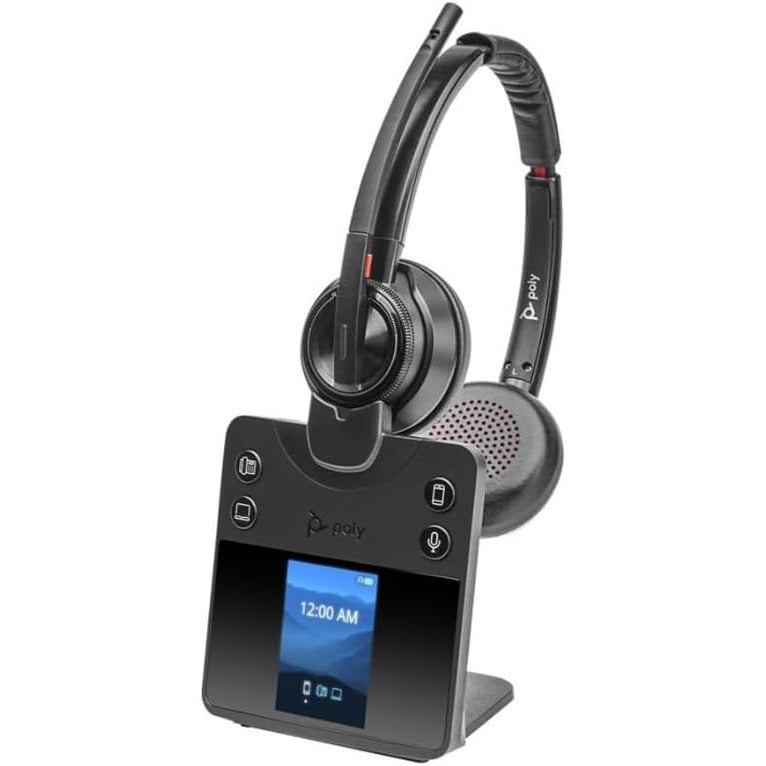











































If you want one headset to work with both your desk phone and computer — without buying two separate headsets — the Plantronics MDA200 is the switch that bridges them. Here's how it connects, and how to add remote answering.
Key takeaways
- The MDA200 connects one headset to both a desk phone and a computer via USB, with a button to switch between them.
- Works with USB headsets directly, or H-series corded headsets via a DA-series USB adapter.
- Remote answering requires an HL10 handset lifter (needs a separate AC adapter) or an EHS cable (no adapter needed).
- Also supports a Bluetooth USB dongle for hearing-aid pendant compatibility — see our HAC headsets guide for that setup.
Connecting a USB headset to the MDA200
Plug the MDA200 into your computer via USB, then connect it to your desk phone using the included phone cable. Plug your corded or wireless USB headset into the MDA200's USB port. To switch between the desk phone and computer, press the corresponding button on the MDA200.
Without a lifter or EHS cable, an incoming desk-phone call still requires physically picking up the handset first, then pressing the headset's answer button to transfer the call over.
Connecting an H-series corded headset instead
If you'd rather use an existing H-series Plantronics headset instead of a dedicated USB headset, pair it with a Plantronics DA-series USB adapter. The two Quick Disconnect (QD) plugs snap together, and the combination functions exactly like a USB headset when connected to the MDA200.
Myth
You need a completely different headset to use the MDA200 versus a regular desk phone setup.Reality
Not if you already own an H-series Plantronics headset — a DA-series USB adapter turns it into a USB-compatible headset, working with the MDA200 the same way a purpose-built USB headset would. No need to buy a second headset just for computer connectivity.Remote answering with the MDA200
To answer or end desk-phone calls without physically touching the handset, you need either a Plantronics HL10 handset lifter or, on compatible phones, an EHS cable.
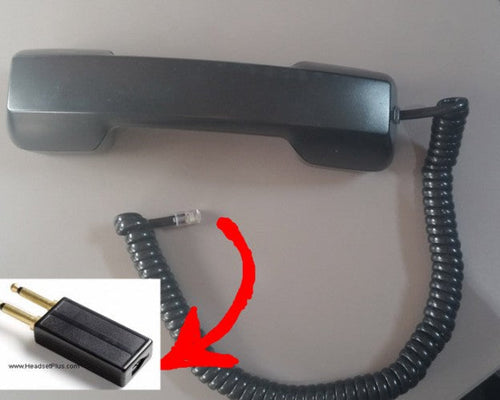
Using the HL10 lifter: the lifter mounts under the handset with included double-sided tape, positioned near the earpiece, and plugs into the MDA200. The HL10 requires a separate AC wall adapter for the MDA200 to power it — the two are sometimes sold bundled together. Once installed, press the phone button on the MDA200 to engage the lifter; you should hear a dial tone. If not, there's a height-adjustment switch behind the lifter — increase the height until the handset clears the hang-up switch.
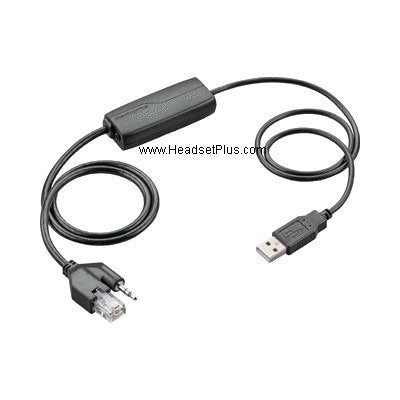
Using an EHS cable: if your phone supports EHS, it replaces the lifter and answers calls electronically rather than physically raising the handset. No AC wall adapter is needed in this case — simply connect the cable's dual-pronged plug to the MDA200 and the other end to the corresponding port on your desk phone. Call our team to confirm EHS compatibility for your specific phone model.
Bluetooth hearing-aid compatibility
The MDA200 also supports a Bluetooth USB dongle compatible with hearing-aid pendants, for users who need that specific setup rather than a standard headset. See our full hearing aid compatible headsets guide for the complete pairing steps.
What does the Plantronics MDA200 do?
It's a USB switch that connects one headset to both a desk phone and a computer, letting you toggle between them with a button press, instead of needing two separate headsets for each.
Can I use my existing corded headset with the MDA200?
Yes, if it's an H-series Plantronics headset — pair it with a Plantronics DA-series USB adapter, and the combination works with the MDA200 the same way a dedicated USB headset would.
How do I answer desk-phone calls remotely with the MDA200?
Add either a Plantronics HL10 handset lifter (which needs its own AC adapter) or, on compatible phones, an EHS cable (which needs no adapter). Either lets you answer and end calls from the headset without touching the handset.
Is the Plantronics MDA200 still available?
Current availability should be confirmed directly with our team, since accessory availability can change — call 877-999-3838 to check current stock and whether a newer equivalent is recommended for your setup.
The MDA200 is a straightforward way to get one headset working across both your desk phone and computer — the setup takes a few minutes, and adding a lifter or EHS cable rounds it out with remote answering. Call our team at 877-999-3838 with questions about your specific phone or headset combination.

Comments (0)