















































How to mute a Zoom meeting
To mute yourself in a Zoom meeting, click the Audio icon in the meeting toolbar, or press Alt+A on Windows or Command+Shift+A on a Mac. Press the same shortcut again to unmute.
If you only talk now and then, push-to-talk is easier: stay muted and hold the spacebar while you speak.
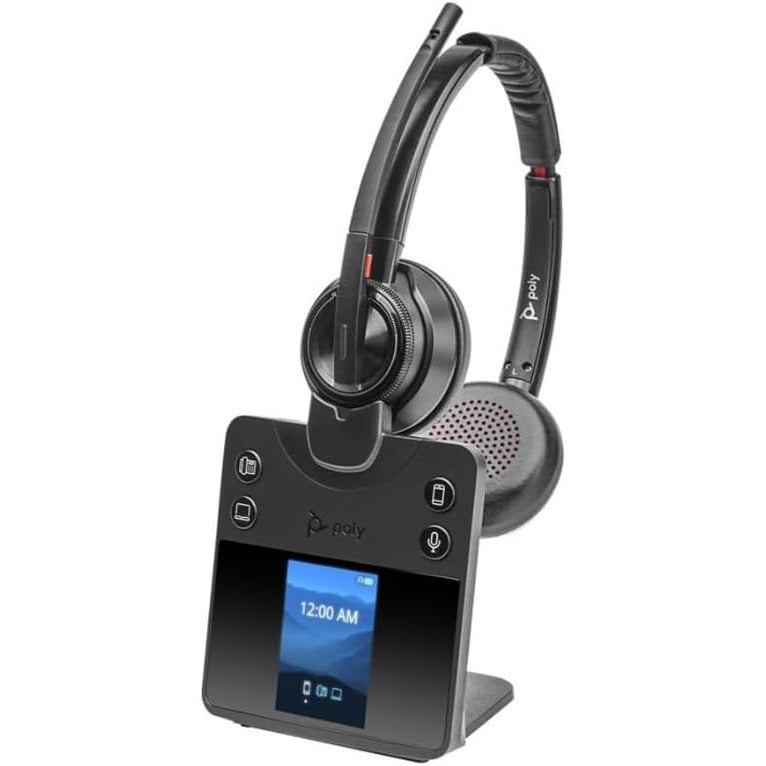
Many people also mute from the headset. A mute button on the cable or ear cup is quicker than finding the Zoom window, and the headsets we carry for Zoom are the ones worth checking if you want that button to behave.
Four ways to mute on Zoom
Use the Audio button
In the meeting controls toolbar, click the Audio icon. You hear a chime when you mute and unmute.Use the keyboard shortcut
Press Alt+A on Windows or Command+Shift+A on a Mac to mute or unmute your own audio. You can change these in the Keyboard shortcuts tab of Zoom's settings.Hold the spacebar to talk
Stay muted for the whole meeting and hold the spacebar when you want to speak. Let go and you are muted again.Use the headset's mute button
Press the mute button on your headset. Check the Audio icon on screen the first time, because on some headsets the button can mute the headset while Zoom still shows you as unmuted.
Muting other people or the whole meeting
Muting everyone is a host control. The host can press Alt+M on Windows or Command+Control+M on a Mac to mute everyone except the host. As a participant, you can only mute yourself.
If the reason you keep muting is noise, Zoom's background noise suppression may do the job for you. If the problem is others hearing themselves back, it is an echo, and stopping echo on Zoom is a different fix.