















































Zoom background noise suppression
Zoom applies background noise suppression by default through a microphone mode called Noise removal, and you can raise or lower the level. In a crowded or noisy space, switch to Personalized audio isolation, which uses your voiceprint to keep your voice and cut other sounds.
Only turn on Original sound for musicians if you are playing music, because it switches noise suppression off.
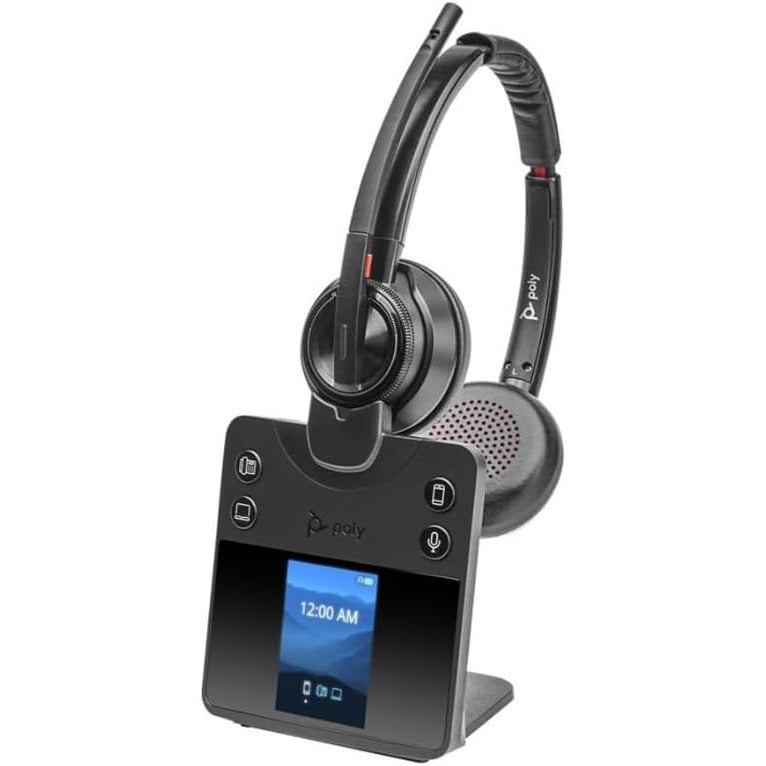
Software can only work with what the microphone hears. A mic a few inches from your mouth gives it far less noise to remove, which is why headsets made for Zoom usually sound cleaner than a laptop mic with every filter turned up.
The three Zoom microphone modes
| Mode | What it does | Use it when |
|---|---|---|
| Noise removal (default) | Zoom's standard audio processing, including background noise suppression you can adjust | Most calls, at home or in the office |
| Personalized audio isolation | Uses your voiceprint to keep your voice and suppress other sounds | Crowded or noisy rooms |
| Original sound for musicians | Captures a fuller range of sound and turns noise suppression off | Playing or teaching music |
Where to change it
During a meeting, open the menu next to the Audio icon in the toolbar on desktop, or the More menu on the mobile app, and pick a microphone mode. The same options are in the Audio tab of Zoom's settings between calls.
When the setting is not enough
If you still find yourself muting to stop the noise, troubleshooting Zoom audio and the quicker ways to mute on Zoom are worth a look.