















































How to stop echo on Zoom
To stop echo on Zoom, find who is feeding sound back into the call: someone connected twice (computer and phone), speakers too close to a microphone, or several computers with audio on in one room. Disconnect the extra audio or put on headphones, and the echo stops.
If you hear your own voice come back, the echo is coming from someone else's setup, not yours.
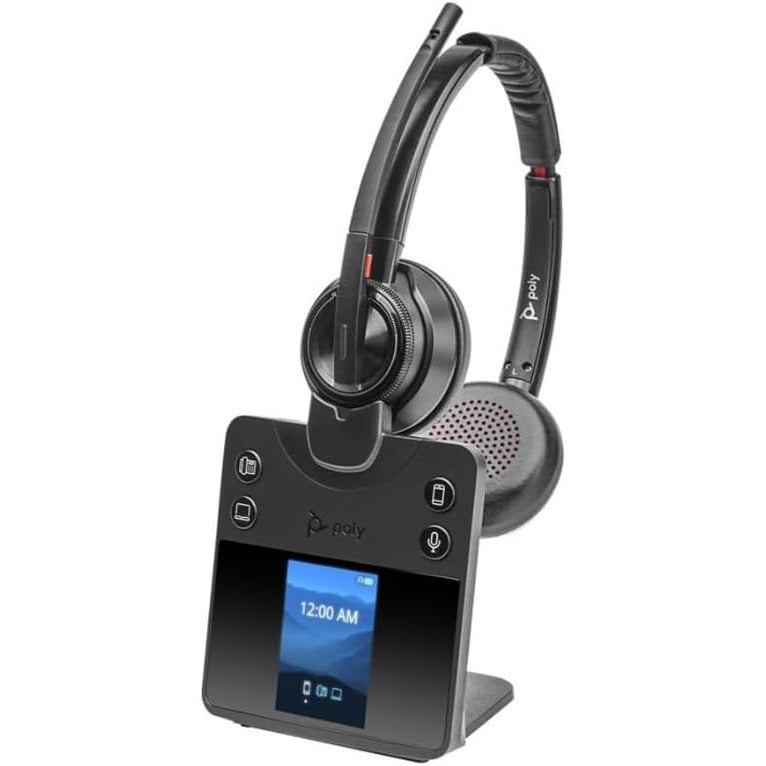
Headphones fix most echo because the sound never leaves your ears to reach the microphone again. That is why a headset for Zoom calls is the long-term answer for anyone who joins meetings from speakers.
Find and fix the cause
Check for a double connection
If one person has both computer audio and phone audio active, the call loops back through them. Leave only one connected.Separate the speakers
Computers or phones with speakers too close together feed each other. Move them apart, or have people use headphones.Disconnect extra computers in one room
When several laptops in the same room all have audio on, muting is not enough, because their speakers still play. Disconnect computer audio on every laptop except one.Leave echo cancellation on
Zoom uses echo cancellation by default. Its advanced audio settings let you set echo cancellation to Auto, Low or High, so check it has not been turned down.
Echo or noise?
Echo is your own voice coming back; noise is everything else in the room. For a dog or a fan, Zoom's background noise suppression is the setting to look at. If people cannot hear you at all, that is a different problem, and fixing Zoom audio that is not working starts there.