
















































How to reset a Cisco IP phone
To reset a Cisco IP phone to factory settings, unplug it, hold the # key while you plug it back in, then type 123456789*0# as soon as the phone signals it's ready. That works across the 7800 and 8800 series, including the 7841, 8811, 8841, 8851 and 8861. If the phone still boots to a working screen, the reset in its own menu is easier and harder to get wrong.
Before you wipe it
- Find out how the phone gets its setup back. Cisco says a Webex Calling phone added by MAC address reconnects on its own, while one added with an activation code needs a new code.
- Write down your headset settings: wideband audio, the Aux port setting for a wireless headset, and any Bluetooth pairing. The reset clears all of them.
- Once the reset starts, leave the power connected until the phone is back at its main screen.
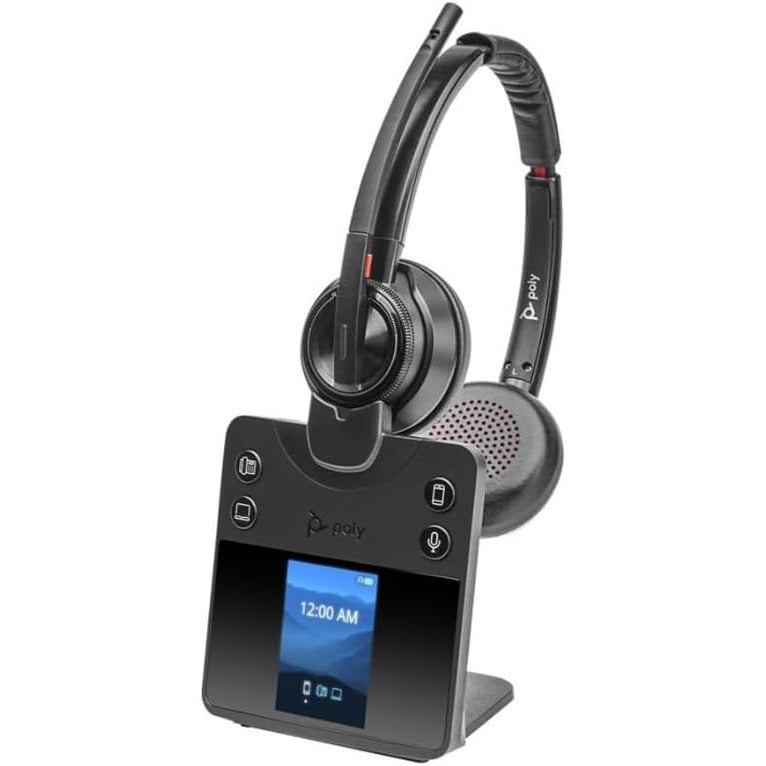
A factory reset is the last resort, not the first fix. It clears every setting stored on the phone, including the headset settings most people forget they ever changed, so the end of this guide covers getting a headset working again. If it's the headset that needs replacing rather than the phone, start with our headsets that work with Cisco phones, listed by the phone models each one fits.
Restart, reset settings or factory reset: which one you need
Most problems need less than a full wipe. Cisco's 8800 series admin guide describes three levels, and each one clears more than the last:
- Restart reloads the phone and drops any setting changes it hasn't saved yet. Try this first when the phone is slow or frozen.
- Reset network settings puts the network and user settings back to default, then restarts. It's the one to try when a phone has moved to a different network and won't register.
- Factory reset, which Cisco's menus call resetting all settings, clears every parameter on the phone. Use it when the phone is going to a new user, a new office or a new phone system, or when nothing else has worked.
Factory reset from the keypad
The keypad method works even when the phone won't boot to a usable screen. Timing is the whole trick: Cisco gives you less than five seconds to finish the sequence once you let go of #.
Unplug the phone
Pull the Ethernet cable if the phone runs on Power over Ethernet, or the power adapter if it has one. Wait five seconds.Hold # and plug it back in
Press and hold the # key, and keep holding it while you reconnect the power.Let go of # when the lights change
On many 7800 and 8800 phones the Mute button lights up and then goes dark, and that's your cue to release #. Cisco's 8800 admin guide describes the Headset and Speaker buttons lighting instead. Whichever you see, release # at that moment.Type 123456789*0#
Press 1, 2, 3, 4, 5, 6, 7, 8, 9, *, 0 and # in order, and finish inside five seconds.Leave it alone while it resets
The Mute button lights to show the reset has started. Don't unplug the phone until that light goes off and the phone reboots to its main screen.
The sequence is the same on every model in both series, so resetting an 8841 works exactly like resetting a 7841, an 8811 or an 8851.
Webex documents a second sequence for newer 8800 hardware: the 8841, 8851, 8861, 8845 and 8865 at hardware version 15 or later. Hold 0 instead of # while you plug the phone in, press 369#, then unplug it and plug it back in to reboot. It's worth trying if the # sequence keeps failing on one of those models.
Factory reset from the phone menu
If the phone boots normally, the menu is quicker than the keypad. Which menu you get depends on the firmware the phone runs, not on the model.
MPP firmware: Cisco's Multiplatform Phone firmware, the version these phones run on Webex Calling and other hosted call systems. Phones registered to Cisco Unified Communications Manager (Unified CM) run Cisco's Enterprise firmware instead.
- Webex Calling and other MPP phones: press Settings, scroll down and press Factory reset. Cisco's small-business guide shows the same reset under Applications > Device administration > Factory reset.
- 8800 series on Unified CM: press Applications, then choose Admin settings > Reset settings > All settings.
- 7800 series on Unified CM: press Applications, then choose Admin Settings > Reset Settings > All, and press OK.
Get your headset working again after a reset
A factory reset returns the headset settings to their defaults along with everything else, so a headset that worked yesterday can come back sounding thin, or with a call button that no longer answers calls. Check these three. The menu paths are from Cisco's 8800 series user guide.
- Wideband audio on a corded headset. Press Applications, select Accessories > Analog headset > Setup, and turn wideband on.
- The Aux port, for a wireless headset with an EHS cable. Since firmware 12.7(1), the electronic hookswitch setting lives on the phone rather than in Unified CM, which is why a reset clears it. Press Applications, then Admin settings > Aux port > Connect e-hook headset. Until it's on, the headset's button can't answer or end calls.
- Bluetooth on the 8851 and 8861. Press Applications, select Bluetooth > Add Bluetooth device, put the headset into pairing mode, then select it and press Connect.
If the Aux port setting is on and a wireless headset still won't pick up calls, look at the cable next. Our guide to connecting a wireless headset to a Cisco IP phone shows which EHS cable goes in which port. For a Poly or Plantronics base, there's a separate walk-through for a Plantronics headset on a Cisco phone with the APC-43 cable.
Why did my Cisco phone restart instead of resetting?
The Cisco phone didn't get the full key sequence in time. If 123456789*0# isn't entered in order and within about five seconds of releasing #, the phone starts up normally with its settings intact. Unplug it and try again with your hand already on the keypad.
Do I need an admin password to factory reset a Cisco IP phone?
Not for the keypad method: none of Cisco's keypad steps ask for one. The menu reset sits under Admin settings, which an administrator can hide, so the keypad is the way in when that menu isn't available to you.
How do I factory reset a Cisco 9800 series phone?
On a Cisco Desk Phone 9800, press Settings, scroll down and press Restart and reset, then select Factory reset and press Select. The keypad sequences in this guide are for the 7800 and 8800 series.
Comments (0)