
















































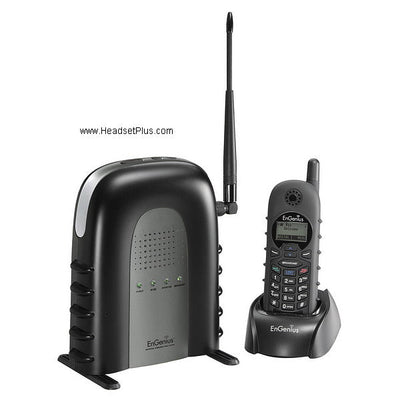
The EnGenius DuraFon 1X is a long-range cordless phone system built for warehouses, campuses, and other large facilities where a standard cordless phone's range falls short. If you're troubleshooting an existing system or just trying to understand a feature, here's the complete reference — every setting, every reset sequence, and every registration step.
Key takeaways
- The DuraFon 1X was discontinued by EnGenius in 2019 — the current replacement is the DuraFon PSL.
- The DuraFon 1X is not compatible with 4X, PRO, or Walkie handsets or bases — each system is separate.
- Up to 9 handsets can register to one base; IDs 11 and 12 are Administrative handsets with extra menu options.
- Operates on 902-928 MHz FHSS, which doesn't interfere with WiFi (2.4/5.8 GHz networks).
- No call handoff between bases — walking into a second base's zone doesn't automatically transfer an active call.
- Reset and registration procedures use specific button sequences — see the troubleshooting reference below before assuming a unit is faulty.
A note on availability: the DuraFon 1X was discontinued by EnGenius in 2019, and neither the base nor handsets are manufactured anymore. If you're replacing or expanding an existing 1X system, the current equivalent is the DuraFon PSL — though note it isn't compatible with 1X handsets or bases, so it's a fresh start rather than an expansion of your existing system. Everything below remains accurate for anyone still running a 1X system today.
General FAQ
Range: base-to-handset vs. handset-to-handset
Two-way and broadcast handset-to-handset communication are independent of the base, and their range runs typically 25-50% less than a standard incoming call or broadcast from the base. If the base uses an external antenna, that gap becomes even more noticeable. To maximize handset-to-handset range, use the long antenna option on the handsets.
Handset and system compatibility
A 1X handset cannot work with a 920, 4X, or PRO base unit — the 1X is not compatible with any other DuraFon system. However, the reverse-thread TNC connector on the base has stayed identical across every EnGenius telecom product since the line began, so an external antenna from an older EnGenius phone will still work with a new 1X base.
Telling the handset models apart
Each DuraFon handset has a distinct bezel color around the LCD: 1X is black, 4X is silver, PRO is green, and Walkie is blue. You can also remove the battery to check the model printed on the serial number label.
Myth
My DuraFon 1X can answer a second incoming call on another base while I'm already on a call.Reality
It can't — the DuraFon 1X handset can only use one connection at a time. The only way to take a second inbound call is through your phone service provider's Call Waiting feature, pressing the talk/flash key to switch. If you need true multi-line handling, the DuraFon 4X and DuraFon PRO are the multiline systems built for that.Multiple bases and interference
Base units and any high-gain antennas should be kept at least 20 feet apart from each other and from other electronic equipment, for best performance and to reduce interference.
Voicemail and call handoff
The DuraFon 1X has no built-in voicemail. It also has no call-handoff ability — walking from one base's zone into a second base's zone won't automatically transfer an active call. If your system sits behind a PBX or key system, you can transfer to the second base's extension number and pick up after releasing the original connection.
Speakerphone, call waiting, and 3-way calling
Speakerphone support depends on build date: all phones built after November 2007, with serial number 07A101340 or higher, include this feature. Call waiting and 3-way calling both work, provided your phone company or phone system supports them — press the flash key to switch between callers.
Frequency and WiFi coexistence
The DuraFon 1X uses frequency-hopping spread spectrum (FHSS) technology at 902-928 MHz. WiFi networks operate at 2.4 GHz and 5.8 GHz, so the two don't interfere with each other.
Why 900 MHz instead of 2.4/5.8 GHz?: Contrary to common assumption, range is actually better at lower frequencies — they're less absorbed by objects and less affected by walls, buildings, trees, and open air. Using 900 MHz also avoids sharing bandwidth with WiFi networks, which would otherwise cause interference and reduce range for both systems. The FCC also permits more transmission power at lower frequencies, since they're considered safer for human RF exposure.
Reading the serial number date
The first three characters of the serial number encode the build date: the first two digits are the year, and the third character is a month code, where A = October, B = November, and C = December. For example, 07Cxxxxxx means December 2007.
Shared-line handoff issue
If you're sharing a line with a non-EnGenius phone and can't join a call in progress — the other party can't hear you — this is an intentional feature to avoid howling or feedback in speakerphone mode when a new call starts. Press any digit to open the voice path. This applies to all DuraFon 1X units with speakerphone.
Troubleshooting reference
Start here for any issue: power-reset both the handset(s) and the base station first. If that doesn't resolve it, try resetting the handset and base unit fully — note that a full reset requires re-registering the handsets afterward.
Ref #1: Removing the "enter base ID" prompt
If the handset asks for a base ID every time you press talk, press Menu, 8, 2 (outgoing call settings for base 1), then turn it off. This prompt should only be active when multiple base stations are in use.
Ref #2: Base station won't enter registration mode
Confirm only the power light is lit on the base station. This commonly happens when the unit is accidentally left in broadcast or 2-way mode, which blocks reset and line access. Power-reset the base to clear it.
Ref #3: Changing from pulse to tone dialing
You need an Administrative handset (ID 11 or 12) — if you don't have one, complete Ref #5 and #6 first. From the admin handset, press Menu, 9, then 10 (for base ID), then 1 for dial mode.
Ref #4a: Resetting a handset (serial number below 071100601)
Press Menu, *##*, then 7 (Factory), then 1 (Clear all). The screen displays "cycle power" — press the left soft key for OK, then turn the handset off and back on with the bottom-left power key.
Ref #4b: Resetting a handset (serial number 071100600 or above)
Press Menu, 5, *, then 1 (clear all), then recycle power. Option 2 instead keeps the base registration while resetting everything else on the handset — useful for clearing the logbook when there's no actual system problem.
Ref #5: Resetting the base
Power up the base for at least 5 seconds. Locate the reset button, near the phone line plug on the back of the base, next to the register button. Hold it down until all four green LEDs illuminate and then turn off — this happens quickly. The base is now reset, and registration numbering restarts at "11." Continue to Ref #6 to re-register handsets.
Ref #6: Registering handsets
Power up the base for at least 5 seconds. Press and hold the REG button on the base until all four green LEDs illuminate. On the handset, press Menu, 6 (register), then 1 (register). The display shows "register," then a new ID — 11 for the first handset registered, then consecutively (12, 13, 14...) for each additional one. Up to 9 handsets can register to one base. IDs 11 and 12 are the Administrative handsets, with additional options including the ability to add extra bases to the system. If all 9 IDs are used, you'll get a "register failed" prompt and need to reset the base to start over.
Ref #7: Deregistering a handset
Power up the base for at least 5 seconds. Press and hold REG until all four green LEDs illuminate. On the handset, press Menu, 6 (register), then 2 (deregister). The handset displays "Deregister," and its ID is removed from both the handset and base. If a handset won't deregister, it likely wasn't registered to that base in the first place, or lost its configuration — repeat Ref #5 and #6 instead.
Ref #8: Linking multiple bases
The DuraFon 1X supports adding additional bases for more coverage or more lines. First, register all handsets to the original primary base (Ref #6). Then, using an Administrative handset (ID 11 or 12) and the additional base you're adding, power up that new base for at least 15 seconds. Press and hold REG until all four green LEDs illuminate. On the admin handset, press Menu, 6, then 3 (add base), and choose 20 for base #2. A third and fourth base follow the same process, using 30 and 40 respectively.
Is the DuraFon 1X still available to buy?
No, it was discontinued by EnGenius in 2019. The current replacement is the DuraFon PSL, though it isn't compatible with existing 1X handsets or bases.
Can a DuraFon 1X handset work with a 4X or PRO base?
No. The 1X system is not compatible with the 4X, PRO, or Walkie systems — handsets and bases only work within their own product line.
How many handsets can I register to one DuraFon 1X base?
Up to 9 handsets. IDs 11 and 12 are the Administrative handsets, which have additional options including the ability to add extra linked bases to the system.
Does the DuraFon 1X interfere with WiFi?
No. The 1X operates at 902-928 MHz using frequency-hopping spread spectrum, while WiFi uses 2.4 GHz and 5.8 GHz — the two don't share or compete for bandwidth.
How do I reset a DuraFon 1X handset?
The exact sequence depends on the serial number. For units below 071100601, press Menu, *##*, 7, 1, then cycle power. For 071100600 and above, press Menu, 5, *, 1, then recycle power. A full reset requires re-registering the handset to the base afterward.
Can I walk between two DuraFon 1X base zones without dropping my call?
No, there's no automatic call handoff between bases. If your system runs behind a PBX or key system, you can transfer the call to the second base's extension number and pick it up after releasing the original connection.
How do I tell my DuraFon handset model apart from other DuraFon models?
Check the bezel color around the LCD: 1X is black, 4X is silver, PRO is green, and Walkie is blue. You can also remove the battery to see the exact model printed on the serial number label.
Most DuraFon 1X issues come down to one of the numbered reference procedures above — a power reset resolves the majority of them, and the registration and reset sequences handle nearly everything else. If you're weighing whether to replace your 1X system entirely with a current DuraFon PSL, or you run into something not covered here, call our team at 877-999-3838.
Comments (0)