
















































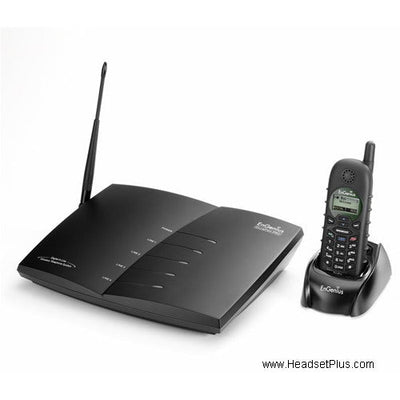
The EnGenius DuraFon 4X is a step up from the 1X for larger deployments — up to 90 handsets, line dedication, and handset grouping for broadcast paging. If you're troubleshooting an existing system or setting one up, here's the complete reference.
Key takeaways
- The DuraFon 4X was discontinued by EnGenius around 2008 — the current replacement is the DuraFon PRO.
- Rated range: up to 250,000 sq ft in a warehouse, up to 3,000 acres outdoors, up to 12 floors in a building (base-to-handset).
- Two-way/broadcast handset-to-handset range runs 25-75% less than base-to-handset range.
- Up to 90 handsets can register to one 4X base; IDs 10 and 11 are Administrative handsets.
- The 4X registered to only one base at a time — for multi-base registration (up to 8 bases), the DuraFon PRO is the system built for that.
- The PRO also adds speakerphone capability and broadcast through a line port, features the 4X never had.
A note on availability: the DuraFon 4X was discontinued by EnGenius around 2008, and handsets are no longer manufactured. The current equivalent is the DuraFon PRO, which replaced it directly and adds speakerphone and multi-base registration. Everything below remains accurate for anyone still running a 4X system today.
General FAQ
Range and coverage
The DuraFon 4X's claimed range is up to 250,000 square feet in a warehouse, up to 3,000 acres in an open outdoor area, and up to 12 floors in a building — all assuming base-to-handset communication. Two-way and broadcast handset-to-handset communication runs less than a typical incoming call through the base, by 25% up to as much as 75% less, and actual range in both cases varies with your specific environment.
Identifying your handset
Remove the battery to check the model and serial number printed underneath.
Multi-base registration
A DuraFon 4X handset can only be registered to one base at a time. If you need a handset to work across multiple bases, the DuraFon PRO is the system built for that.
Using a handset without the base
A handset can't be used for two-way radio straight out of the box — it needs a registration ID from a base unit before it can receive two-way or broadcast communication.
4X vs. PRO: what's different
The DuraFon PRO adds three things the 4X doesn't have:
- Speakerphone capability on the handsets.
- Multiple base registration — up to 8 total base units, allowing two-way/broadcast across all of them, where the 4X is limited to a single base.
- Broadcast through a line port.
Range performance is identical across the 1X, 4X, and PRO models — none has an advantage over the others there.
Troubleshooting reference
Start here for any issue: power-reset both the handset(s) and the base station first.
Turning off line detection ("no lines avail" prompt)
From an Administrative handset (ID 10 or 11), press Menu, 9, 2, 5, then select "off."
Ref #1: Registering handsets
Power up the base for at least 15 seconds. Press the register button (blue, labeled REG, on the side of the base where the antenna attaches) and hold until all line lights illuminate. While those lights are lit, press Menu, 6 (register), then 1 (register) on the handset. The display shows "register," then a new ID — 10 for the first handset registered, then consecutively (11, 12, 13...) after that. Up to 90 handsets can register to one base. IDs 10 and 11 are the Administrative handsets, with additional options: dedicating phone lines to specific handsets, turning the auto attendant on or off, and clearing or assigning IDs to other handsets.
Ref #2a: Resetting a handset (serial number below 071100601)
Press Menu, *##*, then 7 (Factory), then 1 (Clear all). The screen displays "cycle power" — press the left soft key for OK, then turn the handset off and back on with the bottom-left power key.
Ref #2b: Resetting a handset (serial number 071100600 or above)
Press Menu, 5, *, then 1 (clear all), then recycle power.
Ref #3: Deregistering a handset
Same procedure as Ref #1, except press Menu, 6, 2 on the handset. The handset displays "Deregister," and its ID is removed from both the base and handset. If the handset is too damaged to deregister, complete the repair first, then see Ref #9.
Ref #4: Base station won't enter registration mode
Confirm only the power light is lit on the base station. Power-reset the base station, then reset it fully and try again.
Ref #5: Resetting the base
Required if you no longer have an ID 10 or 11 Administrative handset and need to make setting changes. Power up the base for at least 15 seconds, waiting until the line lights flash. Using a narrow pointed object (a pen or paperclip), press the reset button — labeled RST, next to the blue register button on the antenna side of the base. Hold it down until lines 1 and 2 light up, then release. The base is now reset, and registration restarts at 10.
Myth
Resetting the base only clears the handset registrations, not other settings.Reality
Resetting the base (the small button next to REG) erases all registration and administrative changes, including any line dedication you've set up for handsets. Treat a base reset as a full return to factory defaults, not a narrow fix.Ref #6: Dedicating lines to a specific handset
By default, all incoming calls ring every handset. To dedicate a line to one specific handset, use an Administrative handset (ID 10 or 11): press Menu, 9, 1, then 4, then use the up/down arrows to choose the line and the handset ID it should go to.
Note that dedicating one line to a handset doesn't remove that handset from the other, non-dedicated lines — those still ring "all handsets," including the one you just dedicated. To get complete, exclusive direct-dialing per handset, you need to dedicate every line individually. If you want more than one handset on a single line, use grouping (Ref #7) instead of line dedication.
Ref #7: Dedicating line ports to groups
Grouping works like line dedication, but assigns a line to a group rather than a single handset — individual handsets are then added to that group to gain access to its line(s). Follow the same steps as Ref #6, but at the final step choose a group number (01-07) instead of a specific handset ID. A typical arrangement:
- Group 1 = Line 1 = Programming # 01
- Group 2 = Line 2 = Programming # 02
- Group 3 = Line 3 = Programming # 03
- Group 4 = Line 4 = Programming # 04
Out of the box, no handset belongs to any group — you must add each handset to a group individually, or it won't have access to any lines at all. To add a handset to a group, press 5, 2, then ADD. Enter 01 for group 1, and press ADD again to also join group 2 (02), continuing for additional groups as needed. Groups can be added or removed from any handset at any time.
Ref #8: Adding a handset to a group (for broadcasting)
On each handset, press Menu, 5, 2, then ADD. Up to 7 groups are available, numbered 01 through 07.
Ref #9: Recovering your original handset ID after a repair
Any handset sent in for repair gets registered to the manufacturer's test base in the process, which removes its registration from your base. Unless you deregistered it from your base beforehand, your base still considers that ID "in use." For example, if handsets 10, 11, 12, and 13 are registered and you send in handset 12 for repair, re-registering it afterward will assign it ID 14 instead — because your base still thinks 12 is taken.
To recover ID 12: get an Administrative handset (ID 10 or 11) and press Menu, 9, 2, then 1 to choose which handset registration ID to clear — in this example, 12. Once cleared, ID 12 becomes the next available registration ID (the base assigns IDs to handsets in numerical order of the free ones), so you can proceed with the normal registration process in Ref #1.
Is the DuraFon 4X still available to buy?
No, it was discontinued by EnGenius around 2008. The current replacement is the DuraFon PRO, which also adds speakerphone capability and multi-base registration that the 4X never had.
How far does the DuraFon 4X reach?
Up to 250,000 square feet in a warehouse, up to 3,000 acres outdoors, and up to 12 floors in a building, using base-to-handset communication. Two-way/broadcast handset-to-handset range runs 25-75% less than that.
What's the difference between the DuraFon 4X and DuraFon PRO?
The PRO adds speakerphone capability, multi-base registration (up to 8 total bases, versus the 4X's single-base limit), and broadcast through a line port. Range performance is identical between the two.
How many handsets can register to one DuraFon 4X base?
Up to 90 handsets. IDs 10 and 11 are the Administrative handsets, with extra options including dedicating lines, toggling the auto attendant, and managing other handsets' registration IDs.
Why did my repaired handset get a different ID than before?
Repaired handsets are registered to the manufacturer's test base during repair, which clears their registration from your base — but your base still marks the old ID as "in use" unless you deregistered it beforehand. Clearing that ID from an Administrative handset (Menu, 9, 2, 1) frees it up so the handset can be re-registered with its original ID.
Can multiple handsets share the same line on a DuraFon 4X?
Yes, using groups rather than direct line dedication. Assign a line to a group number (01-07), then add each handset you want on that line to the same group — handsets aren't in any group by default, so this step is required for shared-line access.
Most DuraFon 4X issues come down to one of the numbered reference procedures above. Call our team at 877-999-3838 if you run into something not covered here, or if you're weighing whether to replace your 4X system entirely with a current DuraFon PRO.
Comments (0)