















































Why is my mic so quiet?
Your mic is usually quiet because the input volume is set low, your calling app is using a different microphone than you think, or the mic is too far from your mouth. Check the input level in your computer's sound settings, confirm Teams or Zoom is using your headset, and move the mic closer.
If you are talking into a laptop's built-in mic from across the desk, distance is almost always the reason, and no setting fully fixes it.
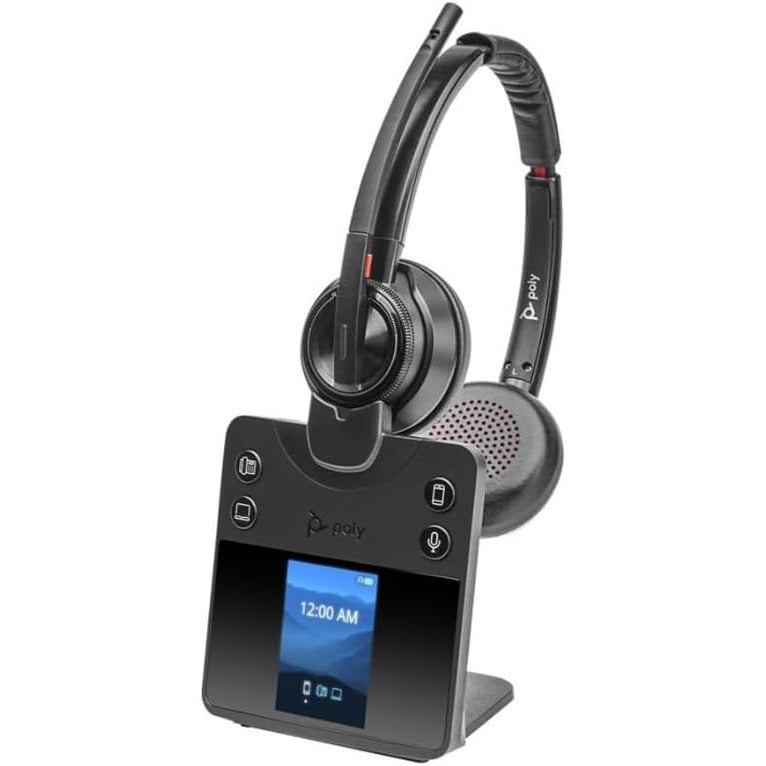
On calls from home, most people use whatever mic their laptop has. That works for a quick chat and falls apart on a full day of meetings, which is why a headset built for calls from home puts the microphone next to your mouth instead of on the screen lid. Work through the checks below in order; each takes a minute.
How to fix a quiet mic, step by step
Start with the settings, because they are free and fast, then look at where the mic sits.
Check which mic is selected
On Windows 11, go to Settings, System, Sound and look at the Input section. On a Mac, open System Settings, click Sound, then Input. Pick your headset, not the built-in microphone, and check again after plugging in a different headset.Raise the input volume and test it
On Windows, select your mic under Input, then use Start test and speak normally, and adjust the Input volume slider. On a Mac, drag the input volume slider in the same Sound, Input screen while you talk and watch the level meter move.Check the calling app
In Teams, go to Settings and more, Settings, Devices, and use Make a test call to hear yourself back. Teams also has an Automatically adjust mic sensitivity option. In Zoom, open Settings, then Audio, and use Test microphone. If your voice fades in and out on Zoom, Zoom suggests turning off Automatically adjust microphone volume and setting the level yourself.Check microphone permissions
On Windows, go to Settings, Privacy and security, Microphone, and make sure microphone access is on, apps can use it, and desktop apps can use it. Teams and Zoom are desktop apps, so that last switch matters.Move the mic closer
Every time you halve the distance between your mouth and the mic, your voice comes through about 6 dB louder while the room stays the same. A laptop mic two feet away is fighting physics. A headset mic a few inches from your mouth is not.Test what callers actually hear
Record yourself or run our headset mic and speaker test in your browser. Listen for level first, then for muffling or background noise.
Why a mic sounds muffled instead of quiet
A muffled mic is usually blocked or pointed the wrong way. A boom arm swung up toward your forehead, a foam cover pushed off-center or a mic tucked behind a scarf all take the crisp edge off your voice. If you use a headset with a boom, it is worth reading what a boom mic does and where it should sit, because the position changes how you sound more than any slider.
A Bluetooth headset that sounds fine for music and dull on calls is a different problem, and we explain why Bluetooth headsets sound different on calls separately.
How to make your mic sound better on every call
Once the level is right, a few habits make the biggest difference. Keep the mic at the same distance all day, so your volume does not jump when you lean back. Close the window or door on the noisiest side of the room. Use one headset for both your laptop and your phone so you are not switching to a worse mic halfway through the day; multipoint Bluetooth is what makes that work.
What people assume
Turning Windows mic boost all the way up fixes a quiet mic.What actually helps
Boost raises the room noise along with your voice. Moving the mic closer raises your voice and leaves the room where it was.Why is my mic quiet on Zoom but fine in other apps?
A mic that is quiet only on Zoom is usually Zoom's automatic volume setting or a different input selected inside Zoom. Open Zoom's Audio settings, check which microphone is chosen, and try turning off Automatically adjust microphone volume.
Can a Teams call tell me if my mic is too quiet?
Yes. The Teams test call records a short message and plays it back, then shows a summary of your mic, speaker and camera, so you hear exactly what other people hear.