





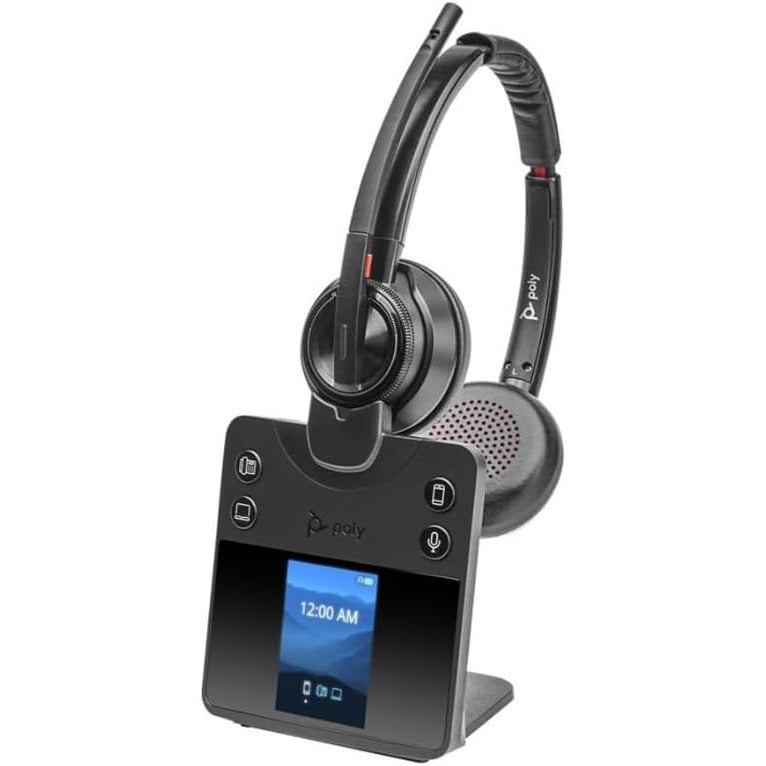











































The Plantronics S11 and S12 were standard-issue office headset amplifiers for years — the system that connected a corded headset to an analog phone through the handset port, before dedicated headset ports became universal. Both are discontinued now, but if you're still running one, the most common setup and troubleshooting questions all have quick answers. Here they are, plus what to do when the unit finally gives out.
Key takeaways
- The S11 and S12 are discontinued. The S11 has a headband-style headset and tone control; the S12 has a convertible headset and Firefly LED, no tone dial.
- The compatibility slide switch should be set to 1 for most phones — see the table below for other phone types.
- Transmit volume has two controls: a HI/LOW range switch and a fine-tune dial; receive volume is a single dial.
- On either the S11 or S12, the stock headset can be swapped for any Plantronics H-series headset — like the HW510 or HW520 — using the U10P (Polaris) cable.
- Replacement stock parts are no longer available; the modern equivalent for phones without a headset port is the Poly MDA524 + QD headset.
S11 vs S12: what's the difference?
Both models use the same amplifier circuit and connect the same way — the differences are the headset style and a few base-unit controls.
| Plantronics S11 | Plantronics S12 | |
|---|---|---|
| Headset style | Simple over-the-head headband | Convertible (over-head or over-ear) |
| Firefly LED | On-line indicator light on base | Firefly LED on microphone tip |
| Tone control | Yes — bass/treble dial on base | No tone dial |
| Volume dial label | "Listen" (receive) and "Speak" (transmit) | Soft rubber dial between switches |
| Lineage | — | Replaced the S10 |
| Status | Discontinued | Discontinued |
Firefly indicator: The LED light on the tip of the S12's microphone boom that flashes when the headset is active on a call — a visible "in use" signal so colleagues know not to interrupt. The S11 has a similar on-line indicator light on the amplifier base instead.
Volume controls: receive and transmit
The S11 and S12 have separate controls for what you hear (receive) and what your caller hears (transmit) — and transmit has two adjustments.
Receive volume (what you hear): one dial. On the S11 it's labeled "Listen"; on the S12 it's the soft rubber dial between the headset/handset and mute switches.
Transmit volume (what callers hear): two controls. A TX range switch sets HI or LOW; a separate dial fine-tunes within that range. On the S11, the range switch is on the left side labeled "Tx Level" and the dial is on top labeled "Speak." On the S12, both are on the right side of the amplifier. If callers can't hear you, check the TX range is on HI and the transmit dial is turned up before adjusting the microphone position.
Configuration switch settings
The compatibility slide switch on the bottom of both amplifiers matches the unit's impedance to your phone type. Position 1 works for most phones. If the audio is distorted or callers can't hear you clearly, try the setting for your phone:
| Switch position | Phone type |
|---|---|
| 1 | Most standard business phones (default) |
| 2 | Avaya Definity |
| 3 | Merlin phones |
| 4 | GE 2-9450 phones |
| 5 | Siemens phones |
| 6 | NW Bell phones |
Changing positions won't harm the headset or phone — try each and use the one where the call sounds clearest.
Installation: connecting the S12
The S12 (and S11) connect through the handset port — they sit between the phone and handset, so you can use either the headset or the handset.
- Unplug the handset cord from the base of your phone.
- Plug that handset cord into the Handset port on the S12 base.
- Take the short telephone cord included with the S12 and plug one end into the Telephone port on the S12 base, and the other end into where the handset was on your phone.
- Plug the headset into the Headset port on the S12.
- Route the headset cord through the cable channel on the bottom of the amplifier.
- Plug the AC power adapter into the wall.
- Set the configuration switch to position 1 (or the correct position for your phone type).
To make a call: put on the headset, take the telephone handset off its cradle and set it on the desk, then press the headset button. You'll hear a dial tone in the headset. At the end of the call, replace the handset to disconnect.
Keeping the base, upgrading just the headset
If your S11 or S12's stock headset isn't comfortable for long periods, or you'd like better noise cancellation, you don't have to replace the whole system. On either model, any Plantronics H-series headset can connect to the base using the Plantronics U10P (Polaris) cable — it plugs into the RJ9 jack where the original stock headset used to connect. Two good options to try are the Plantronics HW510 (mono) or HW520 (binaural, both ears), both from the EncorePro line. This gives you a more comfortable, better-isolating headset with a longer cord, while keeping the base and amplifier you already have.
Myth
The S11 and S12 only work with their original stock headset — no other headset can be attached.Reality
Not true. While the S11 and S12 don't use the modern QD system found on current headsets, the stock headset on either model can be swapped for any Plantronics H-series headset using the U10P (Polaris) cable — giving you a more comfortable, better-isolating option like the HW510 or HW520, while keeping your existing base.Troubleshooting: no dial tone
If you don't hear a dial tone in the headset, work through this checklist:
- Check all cable connections are firmly seated — handset cord at both ends, telephone cord at both ends.
- Confirm the AC power adapter is plugged in and the power is on.
- Press the headset button and check the headset indicator is lit.
- Make sure the phone's handset is off the cradle (set it face-down on the desk).
- Adjust the listen volume dial.
- Try a different compatibility switch position.
- Ensure the headset is centred on your ear and the boom is positioned correctly.
Troubleshooting: callers can't hear you
- Check the mute button is not active.
- Set the TX range switch to HI, then increase the transmit volume dial.
- Move the microphone boom closer to the corner of your mouth — about 2–3 finger-widths away.
- Try a different configuration switch position.
Troubleshooting: hum in the headset
- Try different positions on the compatibility slide switch until the hum clears.
- If the hum persists on all settings and on a different phone, the amplifier unit likely needs replacing.
Replacement parts and the upgrade path
Replacement stock headsets and parts for the S11 and S12 are no longer stocked — these systems are fully discontinued. If the amplifier itself has failed, or you need a fresh setup for a phone without a dedicated headset port, the modern equivalent is a Poly MDA524 amplifier with a QD headset such as the Poly EncorePro HW510 or Jabra Biz 1500. The MDA524 connects the same way as the S12 — through the handset port — but supports modern QD headsets and adds a computer USB port for softphones. If your phone does have a dedicated headset port, you don't need an amplifier at all — just a QD headset and a bottom cable, which our wired headset buying guide covers.
What's the difference between the Plantronics S11 and S12?
Both use the same amplifier base and connect through the handset port, but differ in headset style and controls. The S11 has a simple over-the-head headset and a tone control dial; the S12 has a convertible headset, a Firefly LED on the microphone tip, and no tone dial. The S12 replaced the older S10 model.
What is the Firefly feature on the Plantronics S12?
The Firefly is an LED light on the tip of the S12's microphone boom that flashes while you're on a call — an "in use" signal so colleagues can see you're occupied. The S11 has a similar indicator light on the amplifier base instead.
What should the configuration switch be set to on the S11 or S12?
Position 1 works for most standard business phones. Other positions are for specific systems: position 2 for Avaya Definity, 3 for Merlin phones, 4 for GE 2-9450, 5 for Siemens, and 6 for NW Bell. Changing positions is safe — try each until the audio sounds clear.
Can I replace the headset on the S11 or S12?
Genuine stock replacement headsets for the S11 and S12 are no longer stocked. However, on either model, you can swap in any Plantronics H-series headset — such as the HW510 or HW520 — using the U10P (Polaris) cable. If the amplifier itself has failed, the modern equivalent is a Poly MDA524 amplifier with a current QD headset.
Can I use an H-series or EncorePro headset with the S11 or S12?
Yes, on both models — using the Plantronics U10P (Polaris) cable, you can connect any Plantronics H-series headset, such as the HW510 or HW520, to the S11 or S12 base in place of the original stock headset, for better comfort or noise cancellation. This gives you a more modern headset while keeping your existing amplifier.
If your S11 or S12 is still running, the configuration switch and volume controls fix the large majority of issues, and the U10P cable lets you upgrade to a more comfortable headset without replacing the whole system. When the amplifier itself finally gives out, the Poly MDA524 picks up where it left off — same handset-port connection, modern QD headsets, and a computer port for softphones. Not sure which setup fits your phone? Call our team at 877-999-3838 and we'll match one.
Comments (0)