





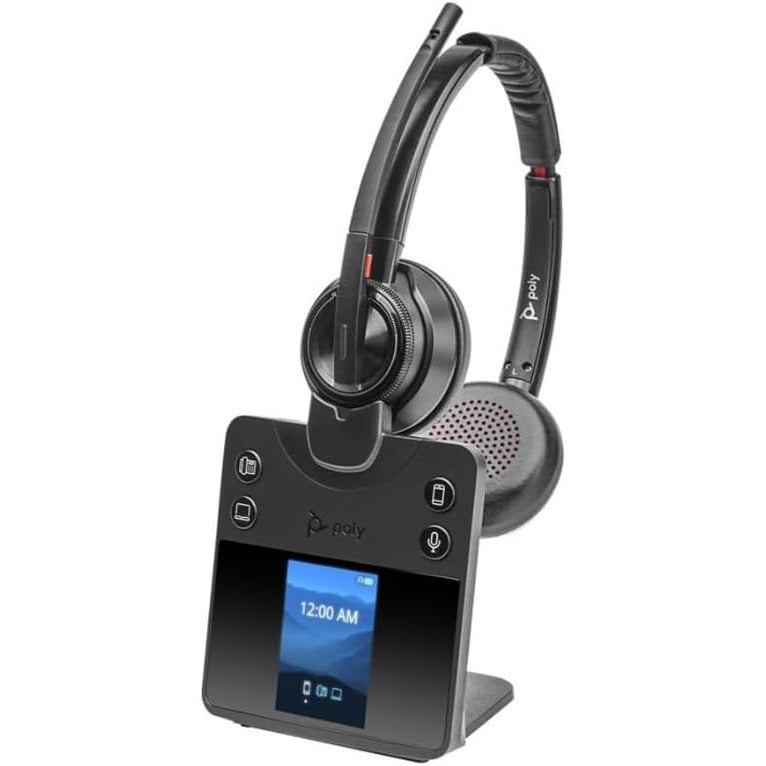











































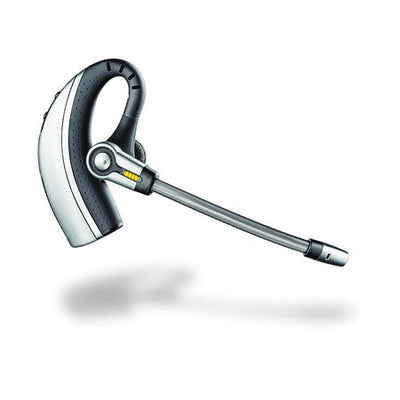
The Plantronics Voyager 510S was one of the first headsets to solve a real problem: switching between a desk phone and a cell phone mid-call, from one headset, with a single button. It's long discontinued now, but if you're still running one, every setup and troubleshooting detail below still applies — plus the current headset that does the same job.
Key takeaways
- The Voyager 510S is discontinued; the current equivalent is the Poly Voyager Focus 2 Office.
- Press the Talk button to switch between an active desk-phone call and a cell phone call — the sequence differs slightly depending on which one rings first.
- Install through the handset port, not the headset port — this is a common setup mistake.
- Remote answering requires an HL10 or, for certain phones, the older HL1 lifter with a more sensitive ring detector.
- Range is roughly 30 feet, far shorter than modern Bluetooth headsets — a key reason to consider the Voyager Focus 2 Office instead.
Switching between desk phone and cell phone
The core feature of the 510S is switching an active call between your desk phone and a Bluetooth-paired cell phone using the headset's Talk button, in two scenarios:
You're on a desk-phone call and want to make a cell phone call: dial the number on the cell phone, then press the Talk button on the headset once to switch to the cell phone call. Press Talk again to hang up the cell phone call. Press Talk a third time to switch back to the desk phone — the original call should still be there.
You're on a desk-phone call and the cell phone rings: press the Talk button twice to switch to the cell phone. As before, pressing Talk again hangs up the cell call, and pressing it once more returns you to the desk phone call in progress.
Installing the Voyager 510S
On the bottom of the base unit, there are two ports — one marked with a handset icon, one with a telephone icon. Unplug the handset cord from your existing phone and plug it into the base's handset-icon port. Take the short cable included with the 510S and connect one end to the base's telephone-icon port, the other end to where the handset cord used to connect on your phone. Plug in the AC power, then adjust the configuration setting for the clearest audio.
Myth
The Voyager 510S should be plugged into your phone's dedicated headset port for the cleanest connection.Reality
The opposite is true — the 510S should be plugged into the handset (receiver) port, not the headset port. Plugging it into a headset port is a common cause of background noise, echo, and distortion that looks like a hardware problem but is actually a setup mistake.Pairing the headset to the base
The 510S ships factory-paired, but if you've bought a separate base unit or a replacement headset, pair them manually:
- Press and hold both the + and − outgoing volume buttons on the back of the base at the same time, until the Call Control Button on top of the base starts flashing blue.
- Press and hold the headset's volume-up (+) button and its call control button at the same time, until the headset's status indicator light flashes red and blue.
- Pairing is complete when the base's call control light turns solid blue (no flashing) and the headset's status light flashes blue.
Fixing background noise, echo, or distortion
These issues almost always trace back to the transmit (speak) volume being set too high. Lower it using the ABCD switch on the bottom of the base — A is lowest, D is highest — and fine-tune with the + and − buttons above and below the microphone icon. Also confirm the 510S is plugged into the handset port, not a headset port, since that's a common cause of the same symptoms.
Controls and settings reference
The 510S has separate transmit (how you're heard) and receive (how you hear) controls:
- Master transmit (ABCD switch, base): A is lowest, D is highest. Fine-tune with the + and − buttons near the microphone icon.
- Master receive (1234 switch, base): 1 is highest, 4 is lowest. Fine-tune using the volume wheel on the back of the headset.
- Headset receive volume: press + to increase, − to decrease, directly on the headset.
- Configuration dial (base, left side): a grey 1–4 dial; the number aligned with the notch is your active setting — adjust for the clearest audio on your specific phone.
- Talk button (headset): answers, ends, and transfers calls between the headset and hand receiver.
- IntelliStand switch (base, right side): when used with an HL10 or HL1 lifter, automatically activates the lifter when the headset is removed from or returned to the base.
Remote answering: HL10 vs. HL1
Remote answering (picking up a call without touching the handset) requires a Plantronics handset lifter. Most phones work with the standard HL10, but certain phones need the older HL1 instead — a larger lifter with a more sensitive ring detector. Reasons you might need the HL1 include your phone's shape (curved vs. square edges), different internal vs. external ring tones, or a magnetized hang-up button. Check our headset compatibility guide for your exact phone model to confirm which lifter you need.
One important limitation with either lifter: if your phone system requires pressing a physical line button to answer or place a call, the lifter won't function on that system.
Multiple bases and pairing limits
A single Voyager 510 headset can be paired to up to 4 different devices, so switching between multiple bases (for example, at different desks) is possible within that limit.
How many 510S systems can run in one office?
Plantronics estimated that the number of simultaneous active calls a space can support increases by roughly 50% each time the floor size doubles:
- 50 ft × 65 ft office: approximately 8 active calls
- 100 ft × 65 ft office: approximately 12 active calls (8 + 50%)
- 100 ft × 130 ft office: approximately 18 active calls (12 + 50%)
These are estimates only, and actual density depends on your specific environment.
Low battery and no dial tone
A low battery is signaled by a single beep repeating every 20 seconds, along with a flashing red status light — recharge the headset right away. If you have no dial tone at all, work through this checklist: confirm the phone has a working dial tone through the handset with the headset off, confirm you're within about 30 feet of the base, confirm the headset is fully charged, and check that listen volume levels are set correctly.
Resetting an unresponsive headset
If the headset stops responding to button presses, perform a hardware reset: press and hold the POWER/MUTE button and the SPEAK VOLUME DOWN key at the same time. Let the headset rest for 1 minute before powering it back on. If the headset has lost its pairing to the base entirely rather than just freezing, you'll need to re-pair it using the pairing steps above.
Callers can't hear you
Work through this checklist: confirm the mute switch isn't engaged (you'll hear periodic beeps if it is), confirm the base's speaking volume level is set correctly (1 is loudest, 4 is softest), and try different configuration dial settings on the base.
The Voyager 510S is discontinued — what to use now
The Voyager 510S is long discontinued. Its core concept — one headset switching between a desk phone and a Bluetooth cell phone — lives on in the Poly Voyager Focus 2 Office, which does the same job with far more range (up to 300 feet from its base, compared to the 510S's roughly 30 feet), active noise cancelling, and connects to a computer as well.
Is the Plantronics Voyager 510S still available?
No, it's discontinued. The Poly Voyager Focus 2 Office is the current equivalent, offering the same desk-phone-plus-Bluetooth-mobile switching with far more range and added active noise cancelling.
How do I switch between my desk phone and cell phone on the Voyager 510S?
Press the Talk button on the headset once to switch to an outgoing cell phone call, or twice if the cell phone rings during a desk-phone call. Pressing Talk again ends the cell call, and pressing it once more returns you to the desk-phone call.
Why do I have background noise, echo, or distortion on my Voyager 510S?
Usually a transmit volume level set too high, adjustable via the ABCD switch on the base. Also check that the 510S is plugged into your phone's handset port rather than a headset port, since that's a common cause of the same symptoms.
What's the difference between the HL10 and HL1 lifter for the Voyager 510S?
The HL1 is an older, larger lifter with a more sensitive ring detector, required by certain phones based on their shape, ring-tone behavior, or a magnetized hang-up button. Most phones work fine with the standard HL10 instead.
How do I reset an unresponsive Voyager 510S headset?
Press and hold the POWER/MUTE button and the SPEAK VOLUME DOWN key together, then let the headset rest for 1 minute before turning it back on. If it's lost its pairing to the base rather than just frozen, you'll need to re-pair it instead.
If your Voyager 510S is still working, these fixes cover the vast majority of setup and troubleshooting issues. When it's time to move on, the Poly Voyager Focus 2 Office picks up the same core idea with meaningfully better range and noise cancelling. Call our team at 877-999-3838 with any questions.
Comments (0)