















































Why does my Bluetooth headset keep disconnecting?
A Bluetooth headset usually keeps disconnecting because of a low battery, too much distance from the computer, interference from nearby USB 3.0 devices, a corrupted pairing, or an outdated Bluetooth driver. Charge it, move closer, then remove and re-pair it; if it still drops, update the driver or use the headset's own USB dongle.
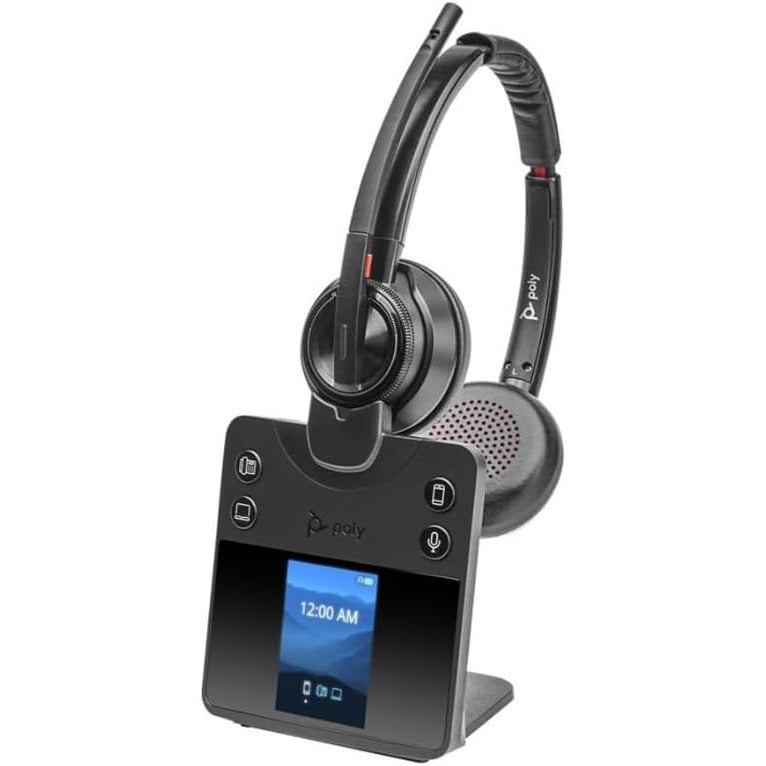
Headsets built for work calls often ship with a dongle for exactly this reason; the Bluetooth headsets we carry include several that do. Work through the steps below first.
How to stop the disconnects
Charge it and move closer
Microsoft's first check is that the device is on, charged and in range.Move away from USB 3.0 ports
Unshielded USB 3.0 devices, like some hubs and external drives, can interfere with Bluetooth. Move the headset's dongle or the laptop away from them.Remove and pair again
Delete the headset from your computer's Bluetooth list and pair it from scratch. A pairing that was interrupted or made on an old driver is a common cause of dropouts.Update the Bluetooth driver
Microsoft calls an outdated or incompatible driver one of the most common causes of Bluetooth problems. Check Windows Update or the computer maker's site.Run the Bluetooth troubleshooter
Windows has a built-in Bluetooth troubleshooter that finds and fixes some problems automatically.Use the headset's dongle
If the headset came with a USB Bluetooth dongle, use it. Microsoft notes that call quality on a computer's built-in Bluetooth depends on its radio, and that some PCs have weak ones.
Disconnects when you switch devices
If the headset only drops when your phone rings or you move between laptop and phone, the cause may be how it handles two connections. Multipoint Bluetooth explains how a headset stays linked to both. If it connects fine but you do not know how to set it up on a new laptop, see connecting a headset to a laptop.
Comments (0)