





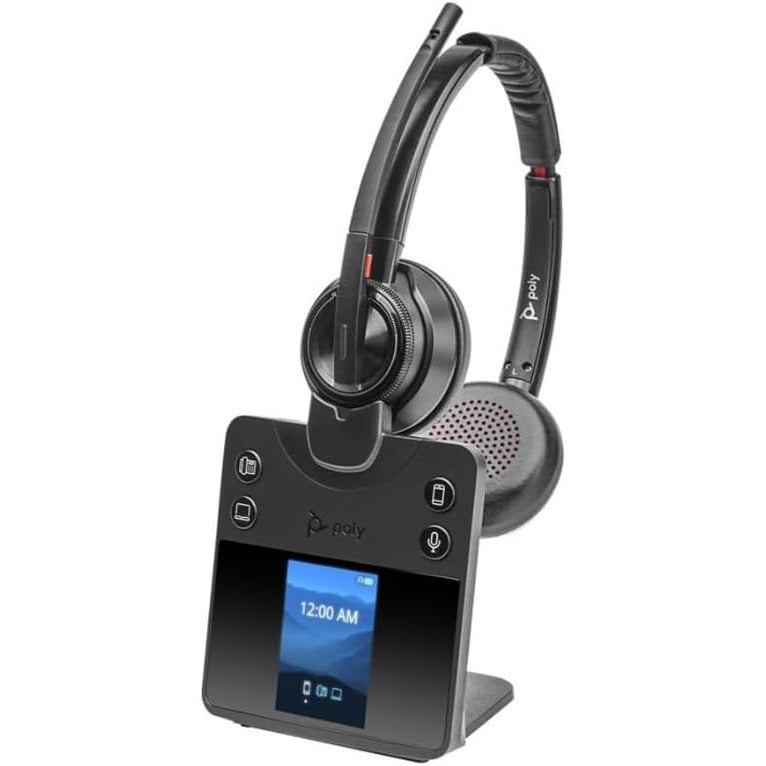











































Teams headset not working: start here
When a Teams headset is not working, Teams is usually using a different speaker or microphone. In Teams, go to Settings and more, then Settings, then Devices, pick your headset under Audio devices, and click Make a test call.
If your headset isn't in that list, the computer isn't seeing it. Plug it straight into the computer, or for a wireless headset use its USB dongle instead of the laptop's Bluetooth, then check again.
Headsets certified for Teams skip most of this, because Teams picks them automatically when you plug them in. Every model in our Microsoft Teams headsets collection is certified. For a headset you already own, the steps below go from the quickest fix to the slowest. Make a test call after each one, and stop when it works. If the headset works but its buttons don't, skip to our guide to Teams headset buttons not working, because buttons fail for different reasons than sound does.
Find your symptom
Each problem points to a different step, so start with the one that matches yours.
| What's happening | Start with |
|---|---|
| Teams isn't detecting the headset at all | Steps 2 and 3 |
| The headset is listed but you hear nothing | Step 1 |
| You can hear, but people can't hear you | Steps 5 and 6 |
| It works in other apps but not in Teams | Steps 1 and 4 |
| Bluetooth headset sounds thin, or the mic is missing | Step 3 |
| Echo, crackling or audio cutting out | Our guide to Teams echo |
How to fix a headset in Teams, step by step
These are the Teams headset settings and computer checks that fix most cases, in the order to try them.
Pick the headset in Teams
Go to Settings and more (the three dots next to your picture), then Settings, then Devices. Under Audio devices, choose your headset as both the speaker and the microphone. In a meeting, click the arrow next to Mic, then More audio settings, and switch it there. Teams keeps whatever you pick here, so a speakerphone or laptop mic you used yesterday can still be selected today.Check the computer can see it
On Windows, open Settings, then System, then Sound, and look for the headset under Output and Input. On a Mac, open System Settings, then Sound. If it isn't there, Teams can't use it. Unplug it and plug it straight into the computer, not into a USB hub, dock or monitor, and try a different port.Use the dongle for a wireless headset
Plug in the USB dongle that came with the headset rather than pairing it with the laptop's own Bluetooth. Microsoft tests most Teams certified wireless headsets with their dongle, and notes that some people still need it because of the computer's Bluetooth radio. Make sure the headset is charged and isn't also connected to your phone.Close other calling apps
Quit Zoom, Webex, a RingCentral or Cisco softphone, and any calling tab in your browser. Microsoft's own advice is to close the headset maker's software, such as Poly Hub or Jabra Direct, as a first check too, because it can get between the headset and Teams. Then restart Teams.Give Teams permission to use the microphone
If people can't hear you, check the computer allows Teams to use a mic. On Windows it's Settings, then Privacy and security, then Microphone. On a Mac it's System Settings, then Privacy and Security, then Microphone, with Microsoft Teams switched on.Check the mute switch on the headset
Some headsets mute when you lift the boom arm up, and many have a mute button on the cable or earcup. Check the headset itself as well as the mic icon in Teams, because either one can mute you.Update Teams and the headset
Install the latest Teams and operating system updates. Then update the headset's firmware in its maker's app, such as Jabra Direct, Poly Studio or Yealink USB Connect, and close that app again before your next call.Make a test call
In Settings, then Devices, click Make a test call. Record a short message and Teams plays it back, so you hear what others will hear from your mic. This is also how to test a headset in Teams before any important meeting.
Why a Bluetooth headset sounds bad or loses its mic in Teams
A Bluetooth headset paired straight to a laptop switches modes when Teams turns on the mic. Bluetooth has a high-quality stereo mode for music with no microphone, and a hands-free mode that carries the mic but plays sound in mono at a much lower quality. A Microsoft support engineer explains that a computer can't use both at once, so the moment Teams opens the mic, your headset drops to the lower-quality mode.
That's why a Teams Bluetooth headset not working properly often sounds fine for music and flat on calls. The fix is to use the headset's USB dongle, which is built for calls. If Teams is not recognizing the Bluetooth headset at all, remove it from the computer's Bluetooth list and pair it again, or switch to the dongle.
Teams on the web and on your phone
In Teams in a browser, the browser has to be allowed to use the mic. In Chrome and Edge, look for the microphone setting under site permissions and pick your headset there. Headset buttons don't control Teams in a browser, because Microsoft supports headset call controls only in the installed Teams app on Windows and Mac.
On a phone, Teams uses whatever the phone is connected to. If you're asking how to connect headphones to Teams on your phone, pair them in the phone's Bluetooth settings first, then open Teams and choose them from the audio menu during the call.
How to tell if it's the headset, not Teams
Try the headset in another app, such as the Windows Sound Recorder, a Zoom test meeting or our headset mic test, and on another computer if you can. If it fails everywhere, the headset or its cable or dongle is the problem, and it's time for the maker's support or a replacement.
If it works everywhere except Teams, the fix is in steps 1, 4 and 7. If the problem is a Poly headset that keeps muting itself, see our guide to the Poly Voyager Focus 2 muting fix. And if you're choosing a replacement and wondering whether you need the Teams version, see UC vs Teams headset.
Why are my Teams headphones not working when they work for music?
Headphones that play music fine but fail in Teams usually aren't selected in Teams, or they're Bluetooth headphones that switch to hands-free mode when the mic opens. Choose them under Settings, then Devices in Teams, and for Bluetooth headphones use the USB dongle if they came with one.
How do I connect a headset to Teams?
Plug the headset in or pair it with the computer first, then in Teams go to Settings, then Devices, and choose it as the speaker and microphone under Audio devices. A Teams certified headset is picked automatically when you plug it in.
Why is Teams audio not working even with a new headset?
When Teams audio is not working with a new headset, Teams is usually still set to your laptop speakers, or another app such as Zoom has hold of the headset. Select the new headset in Teams settings, close other calling apps, and restart Teams.


Comments (0)