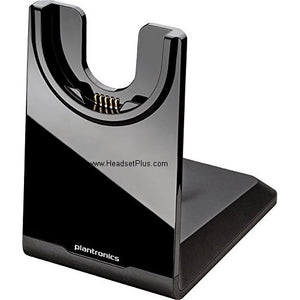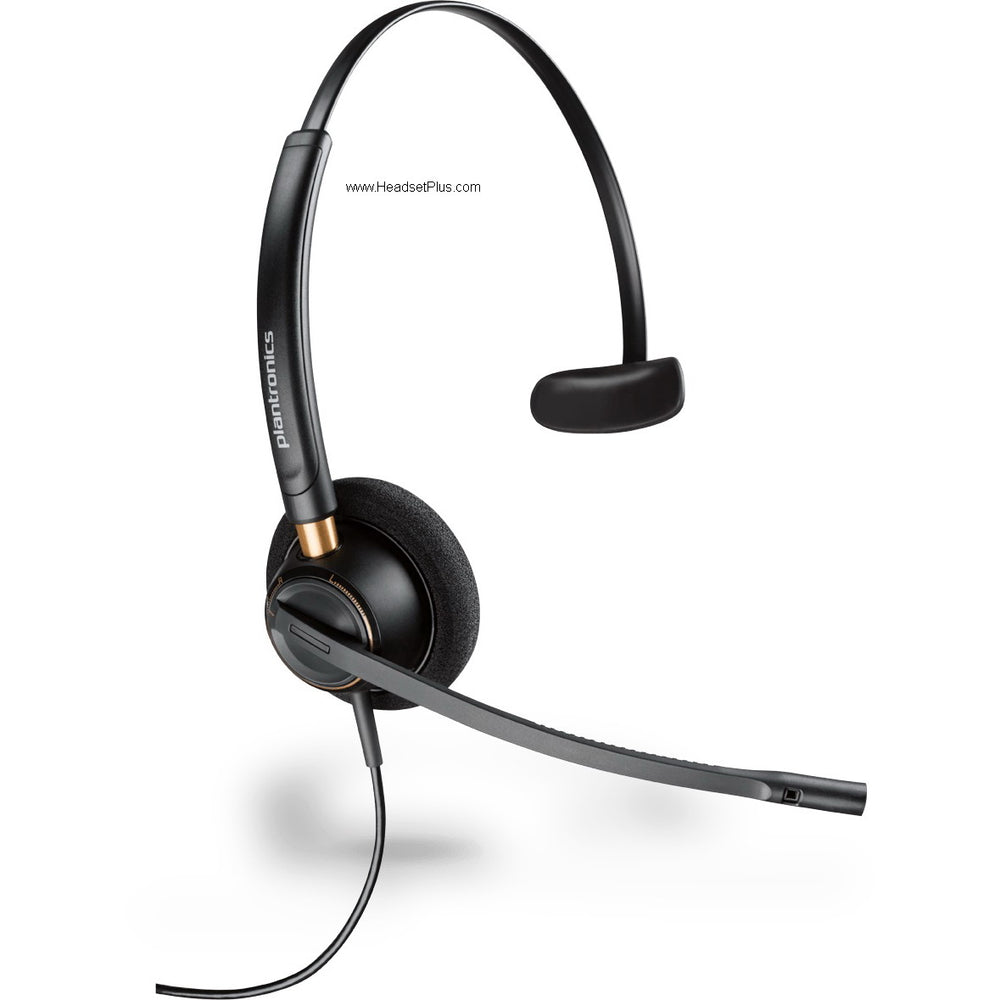

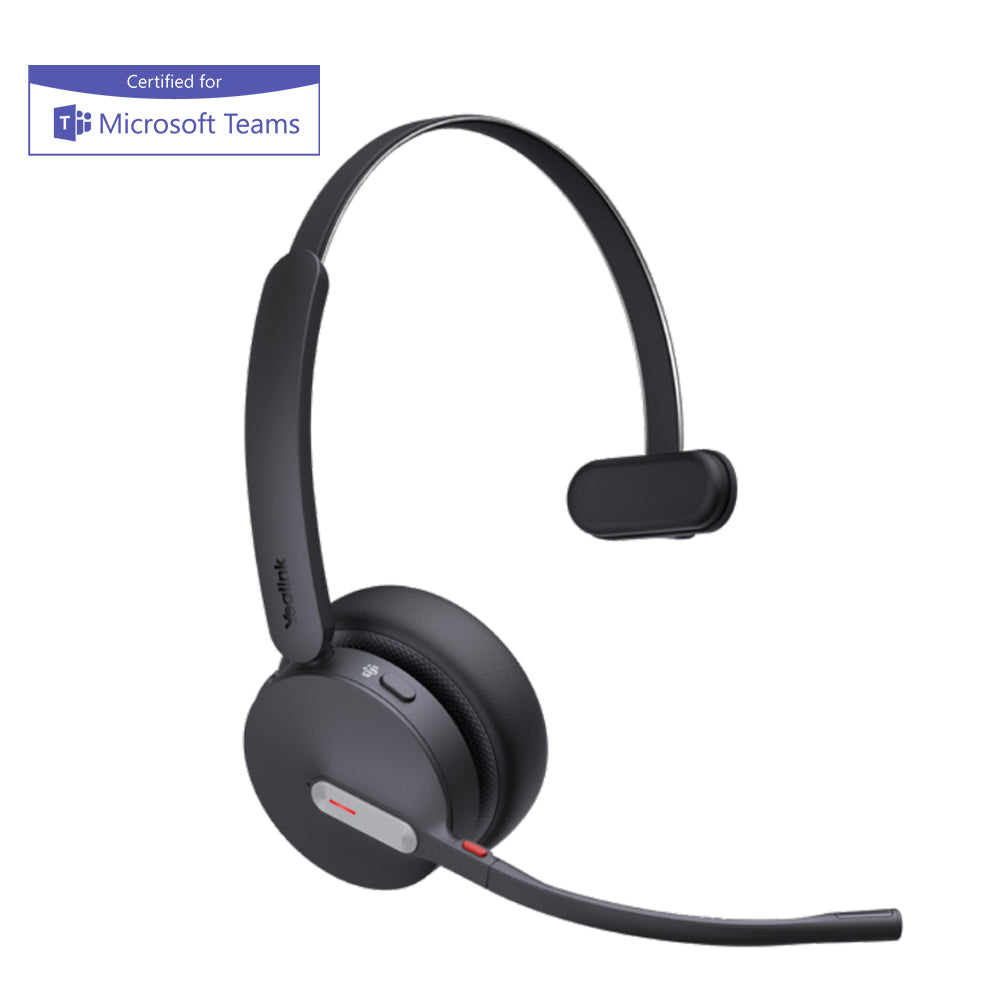
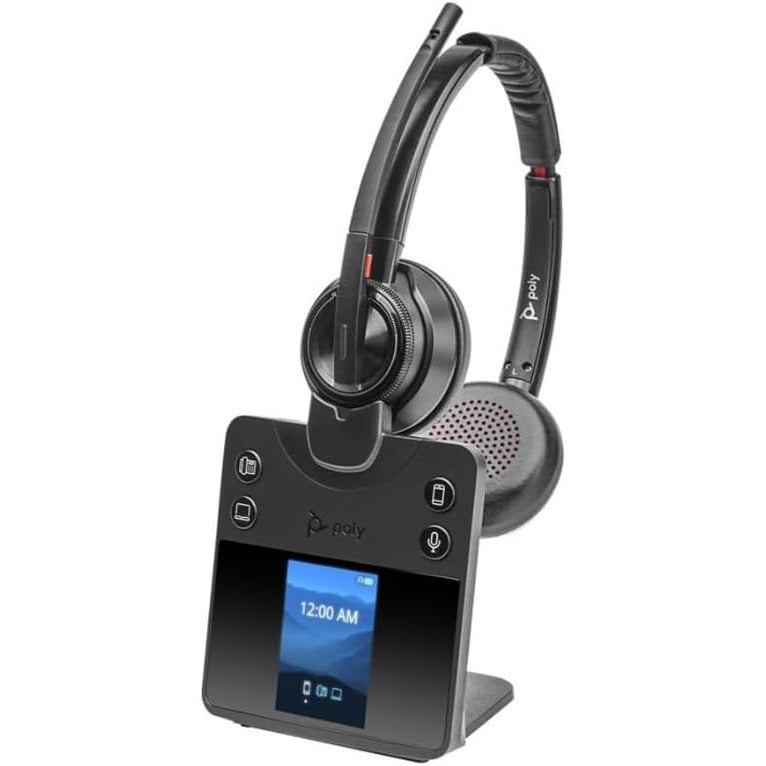






















Poly Voyager Office Base MS Teams for 4300 UC. Voyager Focus 2
Sale price
$89.96
Regular price
$184.95
Skip to product information


Poly Voyager Office Base MS Teams for 4300 UC. Voyager Focus 2
Sale price
$89.96
Regular price
$184.95
Model: 786D0AA
Save $94.99 (51%)
Same Day Shipping*Same-day shipping applies to in-stock orders placed on a business day before our shipping cutoff. Weekends, holidays, and back-ordered items are excluded.Most orders ship same day
30-Day Money BackHassle-free guarantee
No Sales TaxExcept select states
Description
While Supplies Last
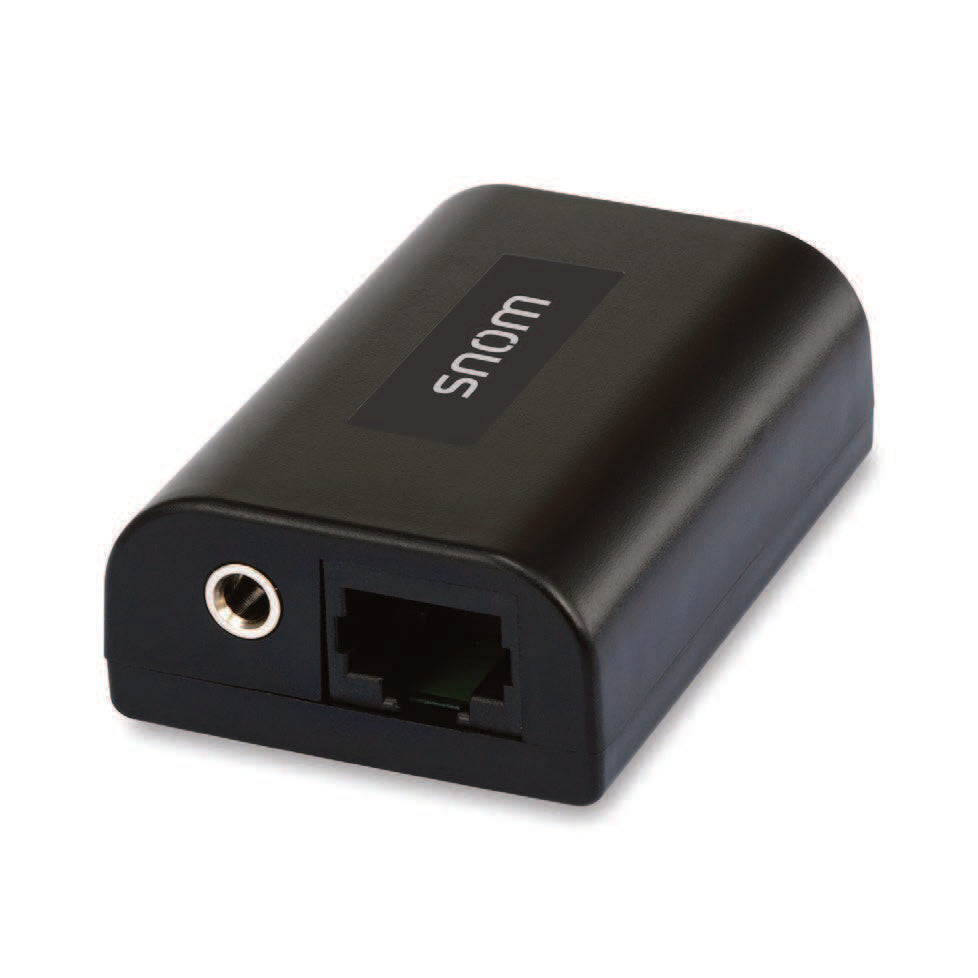
This is the Poly Voyager Office Base Microsoft Teams, for the Poly Voyager 4300 series UC headsets or Poly Voyager Focus 2 Headsets. This base allows the wireless headset to connect ion desk phone and computer, allowing dual connectivity. The base connects to your headset via Bluetooth — up to 300 ft away. The Poly Voyager Office Base is also a charger.
What's inside the box:
- Poly Voyager Office Base for Microsoft Teams
- USB-A, USB-C Cable
- Telephone Interface Cable
- AC Power Supply
Old Poly part # 218472-02
New HP part # 786D0AA
How to Pair the Poly Voyager Office Base to your Poly 4300 or Focus 2 Bluetooth headset:
- To put your headset in pair mode, slide and hold the Power switch away from the off position until you hear "pairing" and the headset LEDs flash red and blue.

- Put your base into pair mode by pressing and holding the Bluetooth pairing button on the back of your base for 2 seconds until the display panel's Bluetooth icon flashes blue and red.

3. Pairing is successful when you hear "pairing successful" and "base connected" and the display panel's Bluetooth icon turns solid blue.

Goes With It
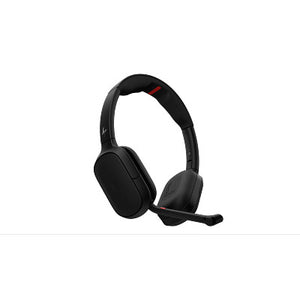
Poly Focus 6 Wireless Headset (Fold and Charging Stand Options)
$256.99
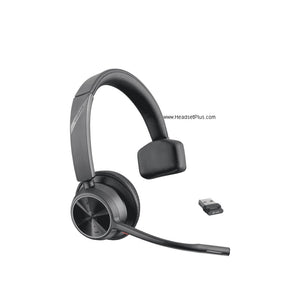
Poly Voyager 4310 Mono Wireless Headset
$140.96
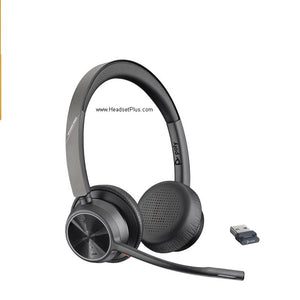
Poly Voyager 4320 Stereo UC and Teams Bluetooth Headset
$153.96
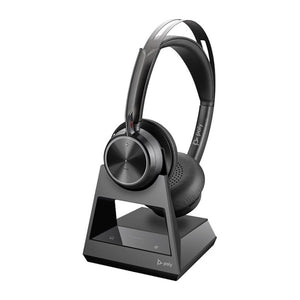
Poly Voyager Focus 2 Office Headset with Desk Phone Base (EHS Options)
$405.96
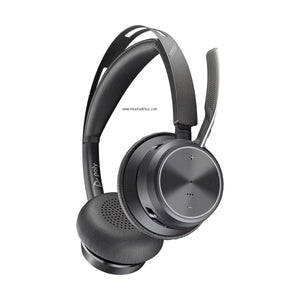
Poly Voyager Focus 2 UC and Teams Wireless Headset (Charging Stand Optional)
$226.96
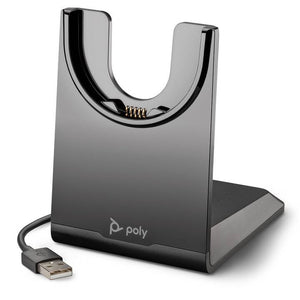
Poly Voyager Focus 2 & 4300 (4310, 4320) Charging Stand USB-A
$47.96